32 — 咖啡烟雾 Shader
介绍
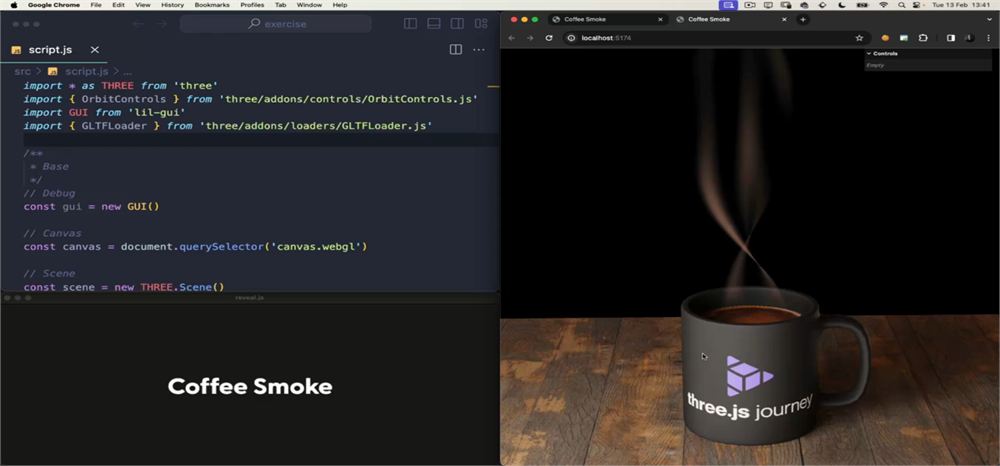
在本课中,我们将学习如何创建从咖啡杯中升起的动画烟雾。
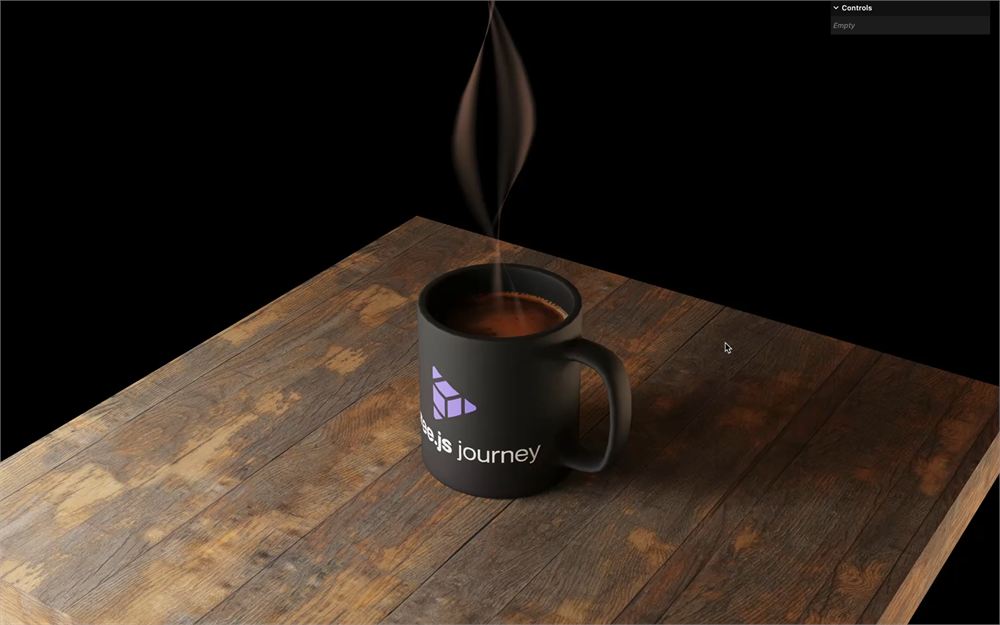
桌子和杯子已经在 Blender 中建模并烘焙好了,本课专注于 shader,因此不会涉及这部分内容。我在 Portal 章节中使用了类似的技术,你稍后会在课程中看到。不过,如果你好奇的话,可以在与本课相关的 Resources 中找到该模型。
这个烟雾的灵感来自 My Room in 3D,这是我在直播时做的一个个人项目。这是一个练习 vertex shader 和 fragment shader 的绝佳练习。
Perlin noise 函数并不好
在之前的课程中,我们一直使用 Perlin 函数来创建各种效果,比如 Raging Sea 或 Shader Patterns,但使用 Perlin 函数实际上对性能不利,会导致帧率下降,尤其是在 GPU 较弱的设备上。
虽然使用 Perlin 函数很方便,但在本课中我们将采用性能更好的方法,改为使用一张简单的 Perlin 图像。
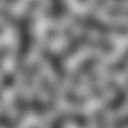
这种技术实际上是大多数电子游戏为了保持稳定性能所采用的方法,而它对网页来说更为重要,因为我们只能分配到电子游戏可用计算能力的一小部分。
在哪里找到 noise texture
本练习中我们将使用的 Perlin noise 图像位于 static/ 文件夹中,文件名为 perlin.png,但获取或创建这类图像有很多种方法。
你可以从各种在线工具和资源中下载它们:
你可以使用像 Figma 及其 Noise Texture 插件、Photoshop 及其滤镜这样的软件。事实上,我们甚至可以使用 Blender,通过在 camera 前方的一个平面上渲染 noise 来实现。
最后,你可以在 WebGL 中使用 Perlin 函数,但只在开始时使用一次,并使用 WebGLRenderTarget 将其保存到 texture 中。虽然这种方法很有趣,而且能轻松调整 Perlin,但对本课来说过于复杂了。
在选择 noise texture 时,请记住以下 3 条规则:
- 要有足够的变化,这样我们就不会看到图案重复得太明显。
- 要足够大,以保证足够精确。不过你并不需要巨大的分辨率,因为像素会被插值。
- 一个可重复(或称 “tilling”)的图案,这样我们就能把图像并排放置而看不出接缝。
项目中提供的 Perlin 图像就是一个很好的例子,其分辨率为 128x128,并且能够正确重复,如下图所示,它由同一张 Perlin noise 重复 4 次组成。
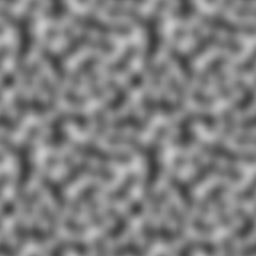
另外要注意,我们只会使用图像的红色通道。一个不错的技巧是把不同的 noise 保存到 4 个不同的通道中,这样只需加载一张图像就能获得多种 noise。不过,为了便于学习和简化,我们将使用一张简单的灰度图像。
准备工作
起始项目已经包含以下内容:
- 包含桌子和杯子的基础烘焙模型
- 一个
lil-gui实例,我们不会使用它,但它的存在让你可以轻松调整烟雾 - 一个
TextureLoader实例 - 一个
Clock实例,我们从中在tick里获取elapsedTime - 用于处理 GLSL 文件的
vite-plugin-glsl依赖 - 用于旋转视角的
OrbitControls
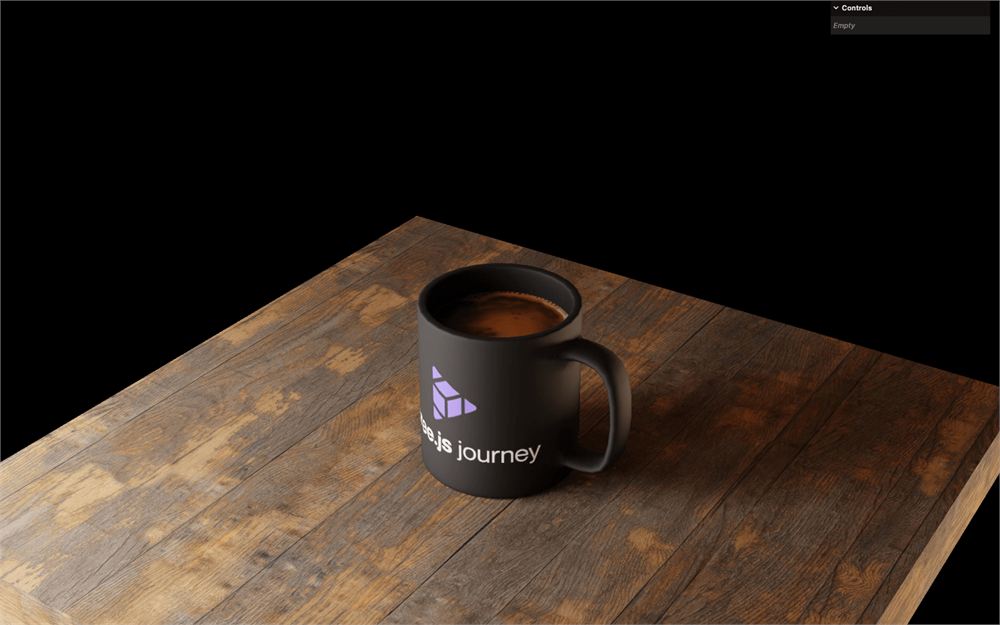
基础 mesh
我们将在 tick 函数之前添加所有与烟雾相关的内容。
/**
 * Smoke
 */
Geometry
对于 geometry,我们将从带有足够细分的方形 PlaneGeometry 开始:
// Geometry
const smokeGeometry = new THREE.PlaneGeometry(1, 1, 16, 64)
然后我们使用 translate() 在 y 轴上平移它,使其底部位于 0, 0, 0:
const smokeGeometry = new THREE.PlaneGeometry(1, 1, 16, 64)
smokeGeometry.translate(0, 0.5, 0)
最后,使用 scale() 缩放它:
const smokeGeometry = new THREE.PlaneGeometry(1, 1, 16, 64)
smokeGeometry.translate(0, 0.5, 0)
smokeGeometry.scale(1.5, 6, 1.5)
你可能想知道为什么我们变换的是 geometry 本身而不是 mesh。我们本可以变换 mesh,但将其应用到 geometry 上会让接下来的 vertex 计算更加方便。
我们现在从一开始就配置好了正确的值,但在正常的项目中,你会在屏幕上看到一些效果之后再去调整这些参数。
Material
稍后我们将使用 ShaderMaterial,但现在我们只想在屏幕上看到一些东西,因此我们将使用 MeshBasicMaterial,把 color 设为 'cyan',把 wireframe 设为 true:
// Material
const smokeMaterial = new THREE.MeshBasicMaterial({
    color: 'cyan',
    wireframe: true
})
Mesh
最后,我们可以使用 smokeGeometry 和 smokeMaterial 创建 smoke Mesh:
// Mesh
const smoke = new THREE.Mesh(smokeGeometry, smokeMaterial)
scene.add(smoke)
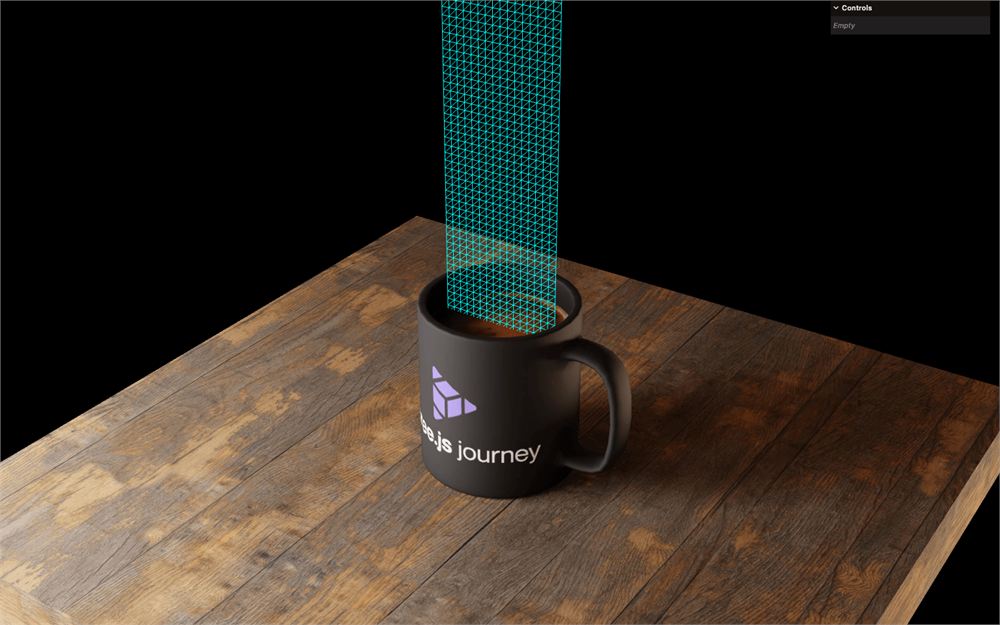
这个 Mesh 目前位于杯子内部。我们可以将它向上移动 1.83 来与模型对齐:
smoke.position.y = 1.83
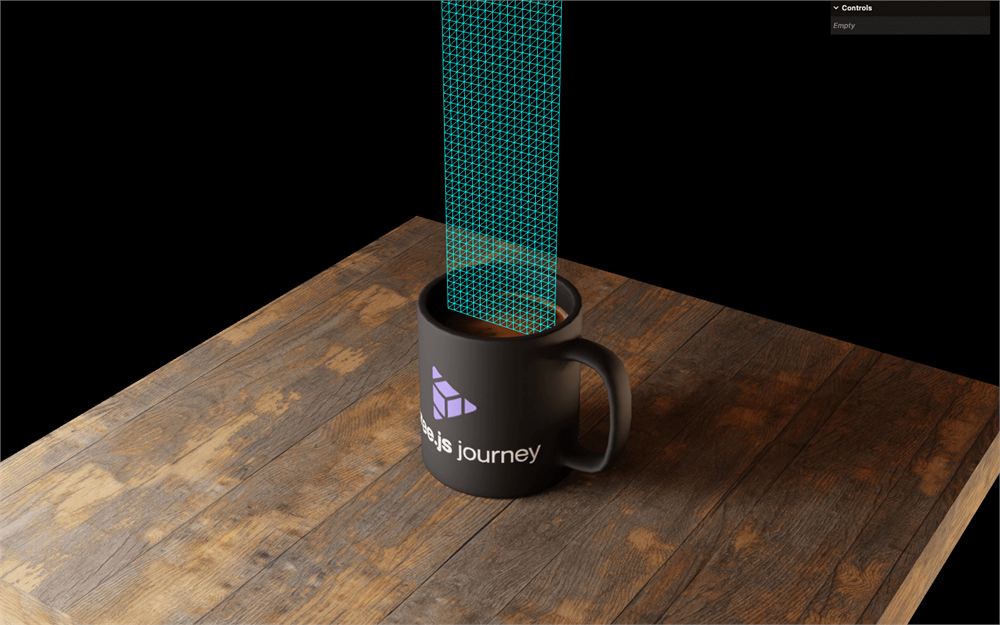
如你所见,geometry 足够高,细分大致呈方形,我们应该有足够的 vertex 来让平面变形而不会察觉到多边形。
现在是时候添加 shader 了。
Shader
我们先从把 MeshBasicMaterial 替换为 ShaderMaterial 开始:
const smokeMaterial = new THREE.ShaderMaterial({
    color: 'cyan',
    wireframe: true
})
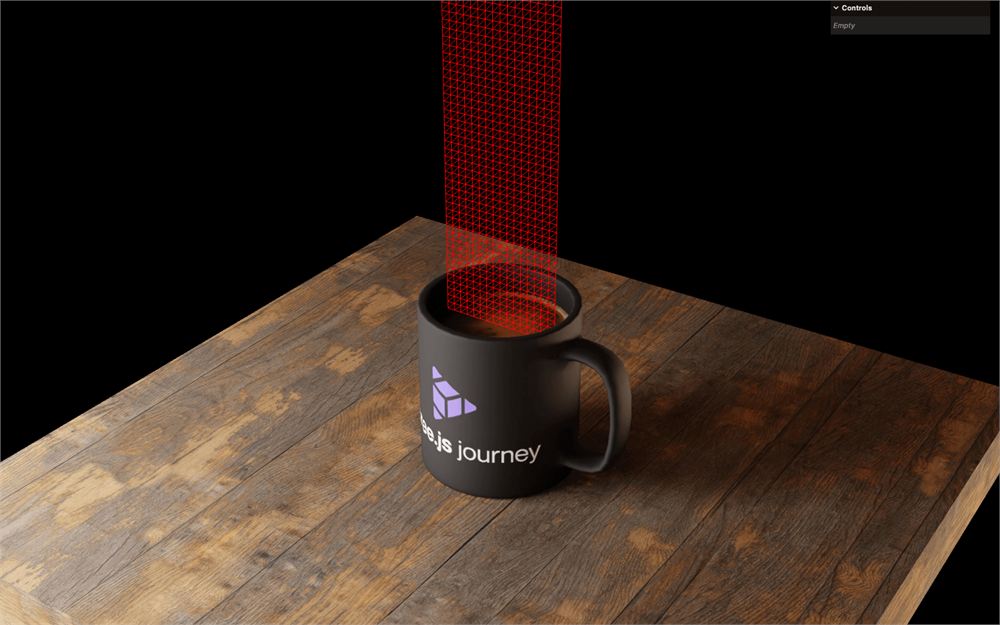
奇怪的是,mesh 仍然可见,但现在是红色的。
这是因为 Three.js 提供了默认的 vertex shader 和 fragment shader,看起来正是这样。wireframe 属性仍然受 ShaderMaterial 支持,但 color 不支持。我们把它移除:
const smokeMaterial = new THREE.ShaderMaterial({
    wireframe: true
})
这很好,但我们需要传入自己的 shader 程序,我们将在单独的 .glsl 文件中创建它们。
创建 shader 文件
在 src/ 中创建一个 shaders/ 文件夹,然后在该 src/shaders/ 文件夹中创建一个 coffeeSmoke/ 文件夹。
在 src/shaders/coffeeSmoke/ 文件夹中,创建一个 vertex.glsl 文件,并配置定位 vertex 所需的最简程序:
void main()
{
    // Final position
    gl_Position = projectionMatrix * modelViewMatrix * vec4(position, 1.0);
}
同样在 src/shaders/coffeeSmoke/ 文件夹中,创建一个 fragment.glsl 文件,并配置将 fragment 染成绿色所需的最简程序:
void main()
{
    // Final color
    gl_FragColor = vec4(0.0, 1.0, 0.0, 1.0);
}
在该 fragment shader 中,我们将在 main() 函数的最后添加两个 #include:
void main()
{
    // Final color
    gl_FragColor = vec4(0.0, 1.0, 0.0, 1.0);
    #include <tonemapping_fragment>
    #include <colorspace_fragment>
}
Three 会注入相应的 chunk。
tonemapping_fragment chunk 会添加对 toneMapping 的支持。我们不会设置 toneMapping,但提前考虑它是一种好习惯。
colorspace_fragment chunk 会转换颜色,以符合 renderer 的色彩空间设置。
你不需要对它们了解太多,只需把它们添加到 fragment 的最后,就能在屏幕上得到正确的颜色。
使用 shader 文件
回到 src/script.js,将两个 shader 分别作为 coffeeSmokeVertexShader 和 coffeeSmokeFragmentShader 导入:
import coffeeSmokeVertexShader from './shaders/coffeeSmoke/vertex.glsl'
import coffeeSmokeFragmentShader from './shaders/coffeeSmoke/fragment.glsl'
使用这样的文件夹和较长的变量名是有争议的,但如果我们要向项目中添加更多 shader,它会很方便。
最后,我们可以使用 vertexShader 和 fragmentShader 属性把这些 shader 传入 ShaderMaterial:
const smokeMaterial = new THREE.ShaderMaterial({
    vertexShader: coffeeSmokeVertexShader,
    fragmentShader: coffeeSmokeFragmentShader,
    wireframe: true
})
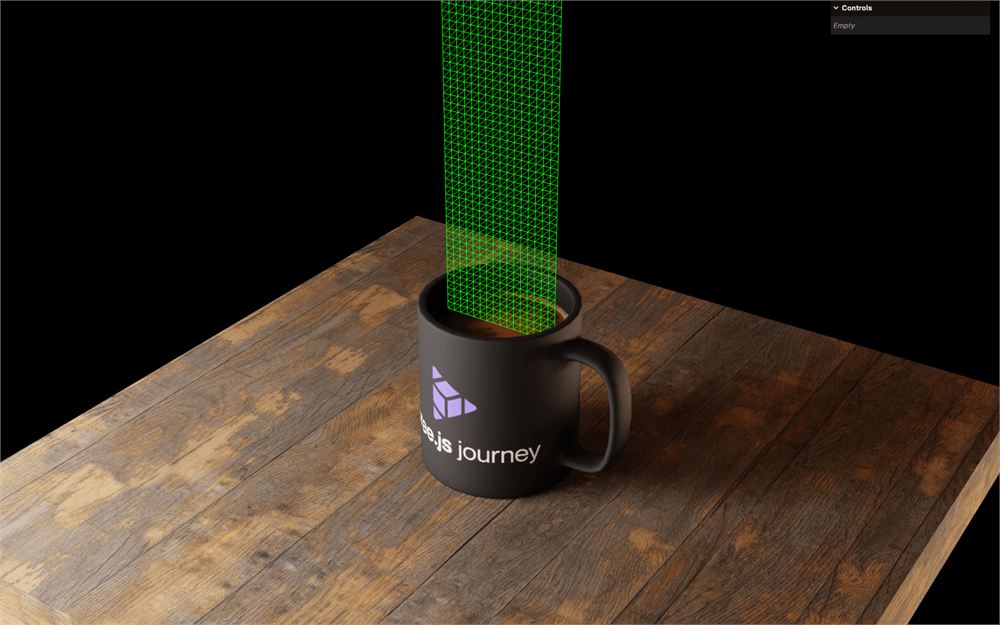
由于我们要从烟雾图案开始,让我们注释掉 wireframe 或将其设为 false:
const smokeMaterial = new THREE.ShaderMaterial({
    vertexShader: coffeeSmokeVertexShader,
    fragmentShader: coffeeSmokeFragmentShader,
    // wireframe: true
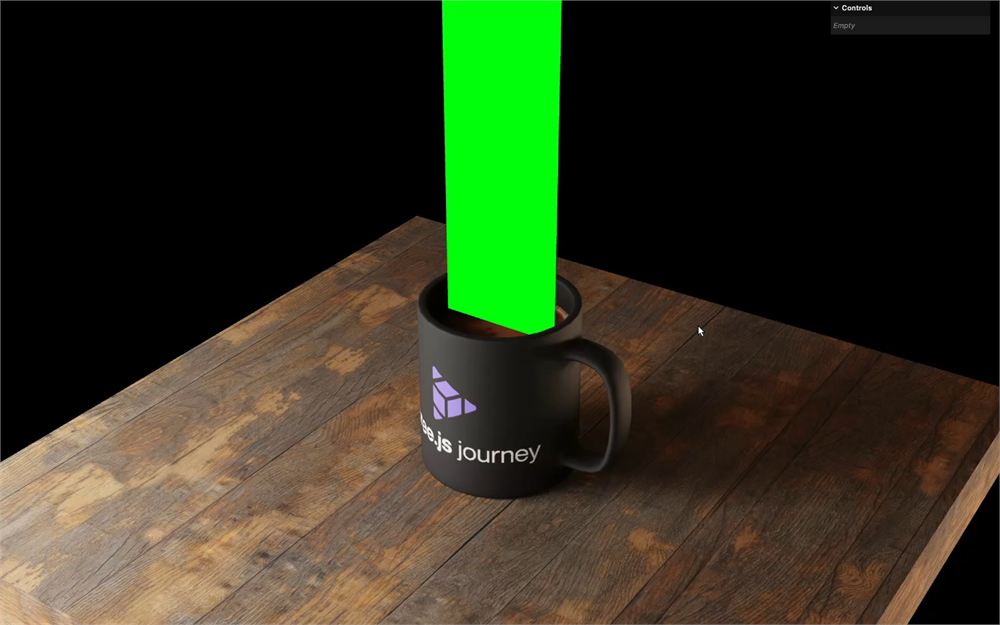
})
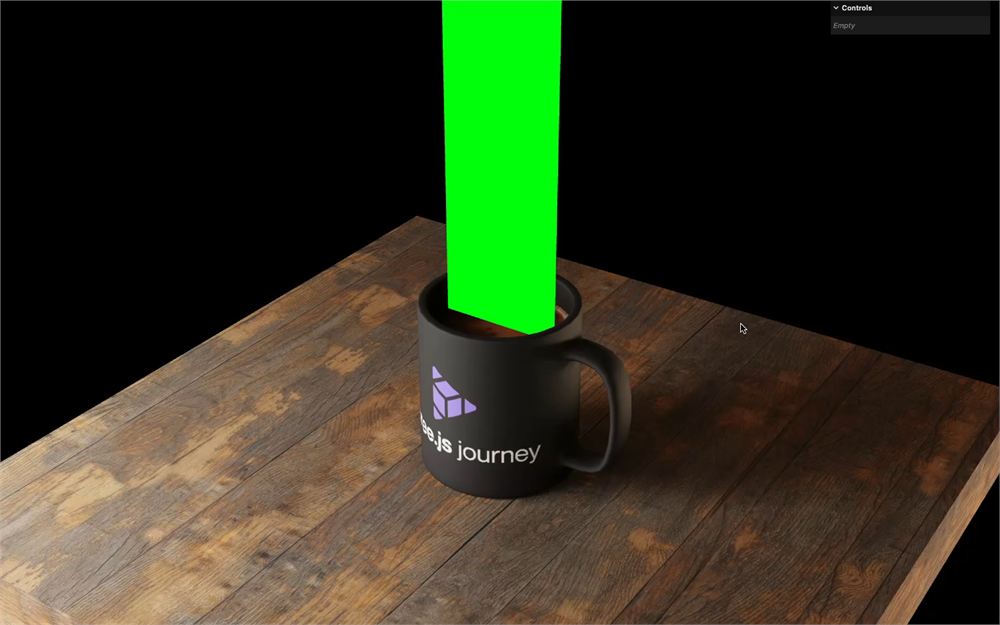
默认情况下,平面的背面不可见。
把 THREE.DoubleSide 传给 side 属性来解决这个问题:
const smokeMaterial = new THREE.ShaderMaterial({
    vertexShader: coffeeSmokeVertexShader,
    fragmentShader: coffeeSmokeFragmentShader,
    side: THREE.DoubleSide,
    // wireframe: true
})
Fragment shader
我们将从 fragment shader 开始,使用 Perlin texture 创建一个动态的烟雾图案。
加载 Perlin texture
在 material 之前,使用 TextureLoader 实例加载位于 static/perlin.png 的 texture。记住我们不应该在路径中写入 static/:
// Perlin texture
const perlinTexture = textureLoader.load('./perlin.png')
把 perlinTexture 作为 uPerlinTexture 传入 material 的 uniforms:
const smokeMaterial = new THREE.ShaderMaterial({
    vertexShader: coffeeSmokeVertexShader,
    fragmentShader: coffeeSmokeFragmentShader,
    uniforms:
    {
        uPerlinTexture: { value: perlinTexture }
    },
    side: THREE.DoubleSide,
    // wireframe: true
})
到目前为止,我们一直把 uniform 作为带有 value 属性的对象传入。虽然这样也行,但 Three.js 使用 Uniform 类简化了这个过程:
const smokeMaterial = new THREE.ShaderMaterial({
    vertexShader: coffeeSmokeVertexShader,
    fragmentShader: coffeeSmokeFragmentShader,
    uniforms:
    {
        uPerlinTexture: new THREE.Uniform(perlinTexture)
    },
    side: THREE.DoubleSide,
    // wireframe: true
})
从现在起我们将使用这种方案。
获取 UV
由于我们要在 fragment shader 中显示该 texture,我们需要该平面上的 2D 坐标,而正如我们所知,这些坐标被称为 UV。
uv 是 vertex 中已经可用的 attribute,我们需要把它传给 fragment。我们可以使用 varying 来做到这一点。
在 vertex.glsl 中,添加一个 vUv varying,并把 uv 赋值给它:
varying vec2 vUv;

void main()
{
    // ...

    // Varyings
    vUv = uv;
}
在 fragment.glsl 中,获取 vUv varying,并将其作为前两个值传给 gl_FragColor,同时为 blue 和 alpha 通道使用 1.0:
varying vec2 vUv;

void main()
{
    // Final color
    gl_FragColor = vec4(vUv, 1.0, 1.0);
    // ...
}
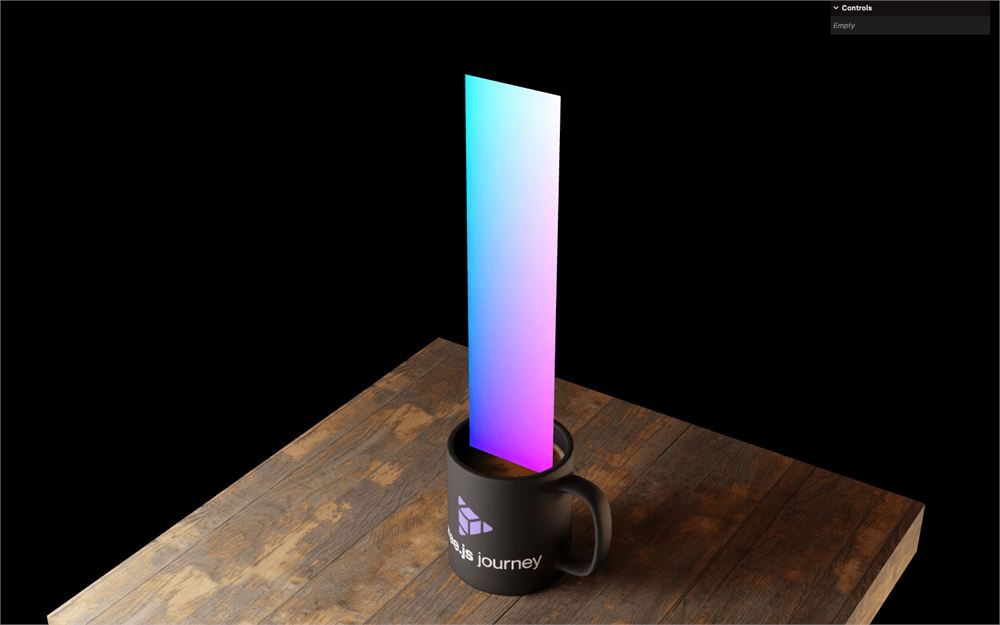
注意,把一个 vec2 赋值给维度更多的向量(vec3 或 vec4)会占用其中的 2 个分量。在这种情况下,写 vec4(vUv, 1.0, 1.0) 就像写 vec4(vUv.x, vUv.y, 1.0, 1.0) 一样。
现在我们的 texture 坐标从左下角的 0, 0 一直延伸到右上角的 1, 1。
获取 texture
同样在 fragment.glsl 中,将 uPerlinTexture uniform 作为 sampler2D 获取:
uniform sampler2D uPerlinTexture;现在使用 texture() 函数在 vUv 坐标处采样颜色,并将结果保存为 vec4 smoke 变量:
uniform sampler2D uPerlinTexture;

varying vec2 vUv;

void main()
{
    // Smoke
    vec4 smoke = texture(uPerlinTexture, vUv);

    // ...
}
如前所述,由于 Perlin texture 是灰度图像,我们只需要一个通道,可以使用红色通道。
把变量改为 float,并且只获取 r 通道:
// ...

void main()
{
    // Smoke
    float smoke = texture(uPerlinTexture, vUv).r;

    // ...
}
把它用在 gl_FragColor 的前三个值上试试:
void main()
{
    // Smoke
    float smoke = texture(uPerlinTexture, vUv).r;

    // Final color
    gl_FragColor = vec4(smoke, smoke, smoke, 1.0);
    // ...
}
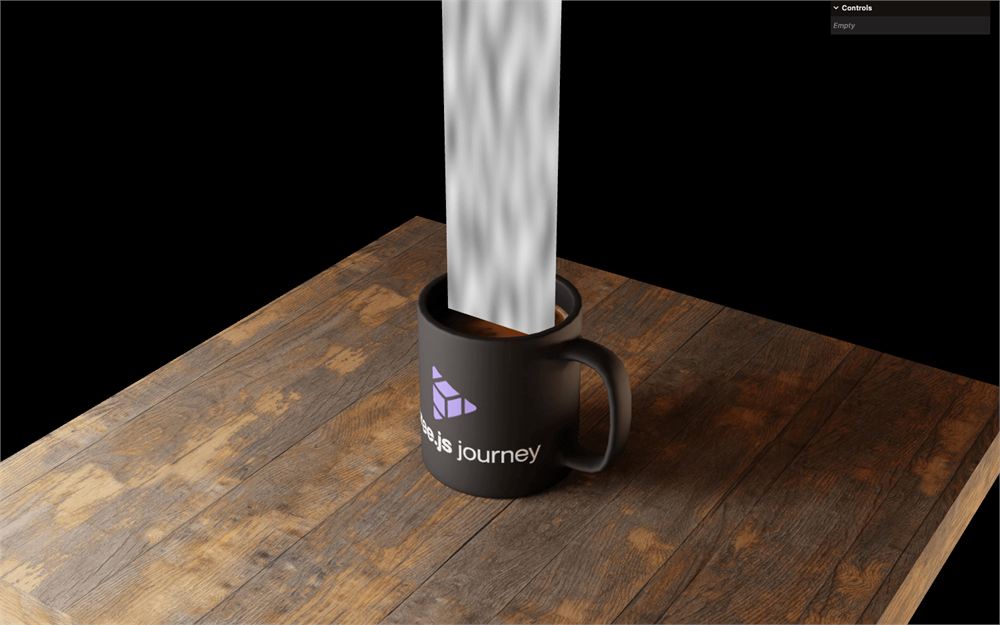
它开始有点像真实的东西了。
把颜色设为白色,即 1.0, 1.0, 1.0,然后试着把 smoke 用在 alpha 值(第四个值)上:
void main()
{
    // ...
    gl_FragColor = vec4(1.0, 1.0, 1.0, smoke);
    // ...
}
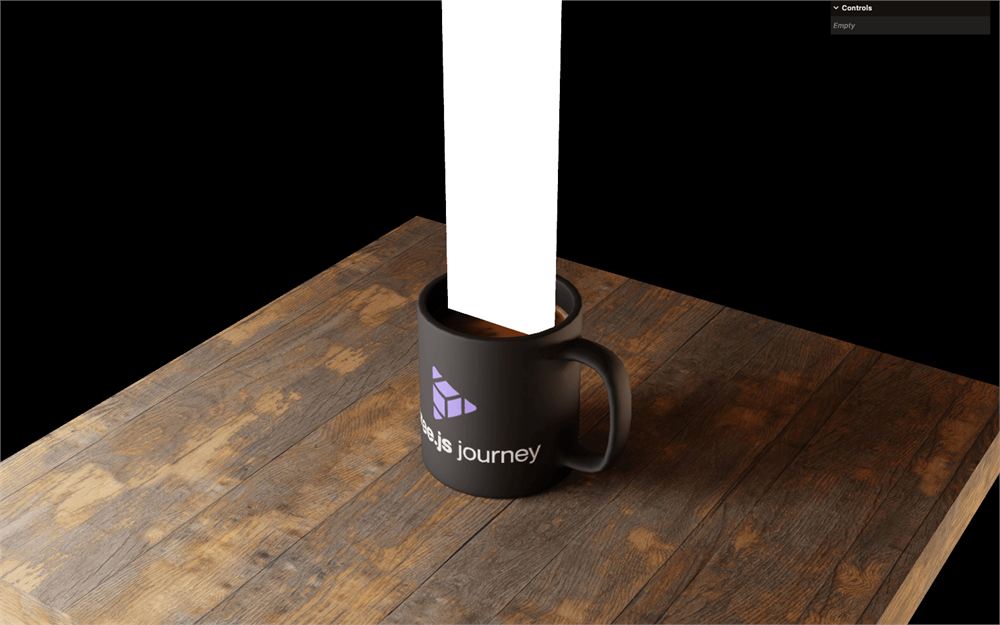
它全是白色的,因为我们忘了某件事。
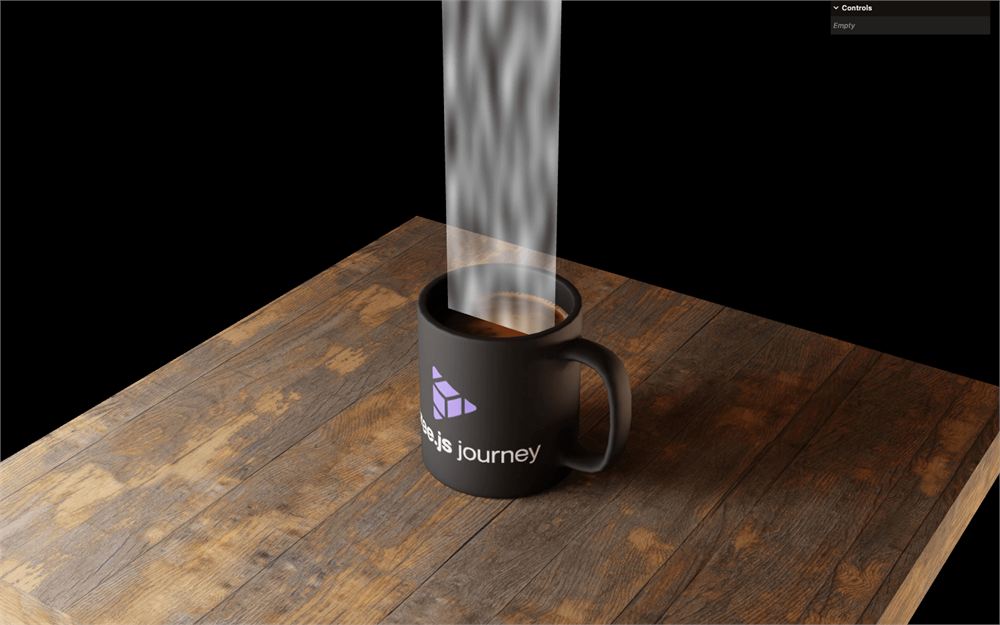
当我们想要支持透明度时,需要在 material 中把 transparent 设为 true:
const smokeMaterial = new THREE.ShaderMaterial({
    // ...
    transparent: true,
    // ...
})
缩放
我们想稍稍拉伸 texture,并让它动起来向上升。要做到这一点,我们需要改变 UV 坐标。由于我们不能直接修改 varying,我们需要基于它创建一个新变量。
在 fragment.glsl 中,创建一个 vec2 smokeUv 变量,把 vUv 赋值给它,并将它而非 vUv 传给 texture():
void main()
{
    // Scale and animate
    vec2 smokeUv = vUv;

    // Smoke
    float smoke = texture(uPerlinTexture, smokeUv).r;

    // ...
}
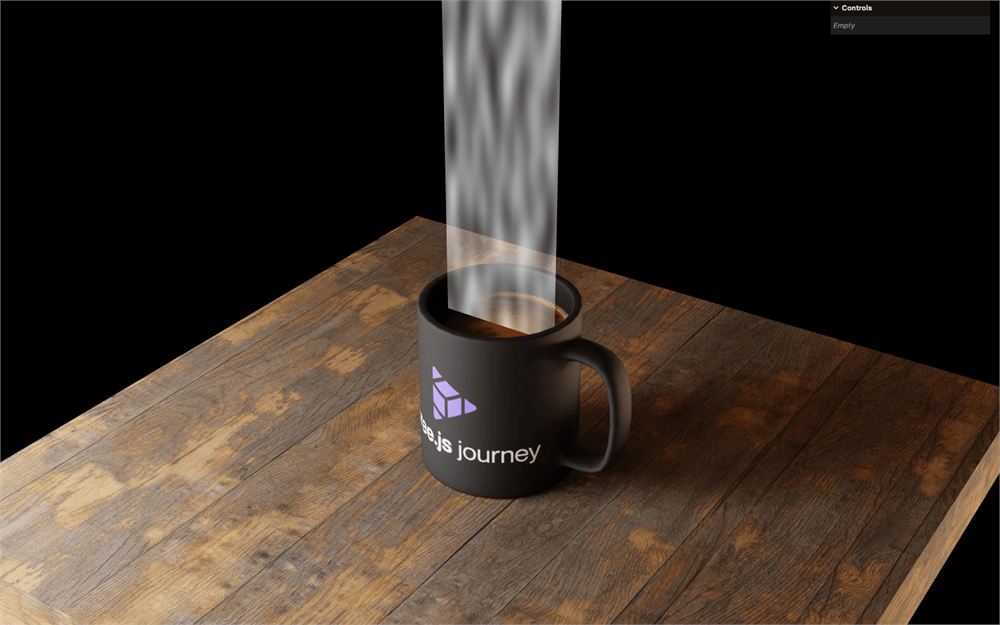
我们得到了相同的结果,但现在可以随意调整 smokeUv 了。
首先把 x 和 y 属性乘以较小的值,以创建更大的图案:
void main()
{
    // Scale and animate
    vec2 smokeUv = vUv;
    smokeUv.x *= 0.5;
    smokeUv.y *= 0.3;
}
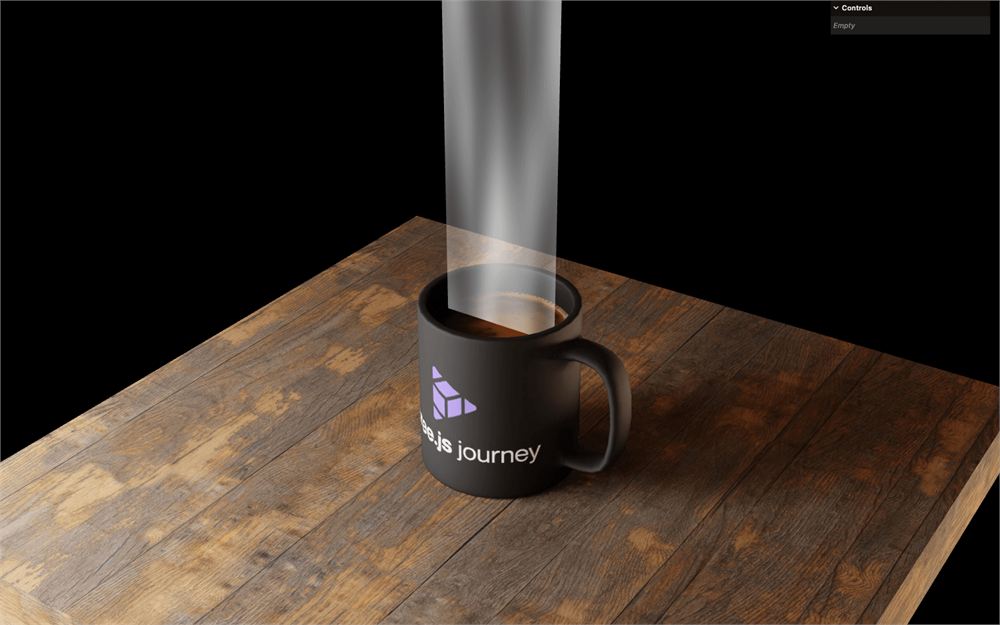
动画
对于动画,我们希望烟雾沿着平面向上移动,没什么花哨的。
为此,我们将把时间作为 uniform 传入。
在 script.js 中,向 material 添加一个 uTime uniform,并赋值一个设为 0 的 Uniform 类实例:
const smokeMaterial = new THREE.ShaderMaterial({
    // ...
    uniforms:
    {
        uTime: new THREE.Uniform(0),
        uPerlinTexture: new THREE.Uniform(perlinTexture)
    },
    // ...
})
在 tick 函数中,把 elapsedTime 赋值给它。
尽管我们使用的是 Uniform 实例,但更新它的方式是一样的,我们需要更新 value 属性:
const tick = () =>
{
    const elapsedTime = clock.getElapsedTime()

    // Update smoke
    smokeMaterial.uniforms.uTime.value = elapsedTime

    // ...
}
回到 fragment.glsl,获取 uTime uniform,并将它加到 smokeUv.y 上:
uniform float uTime;
// ...

void main()
{
    // Scale and animate
    vec2 smokeUv = vUv;
    smokeUv.x *= 0.5;
    smokeUv.y *= 0.3;
    smokeUv.y += uTime;

    // ...
}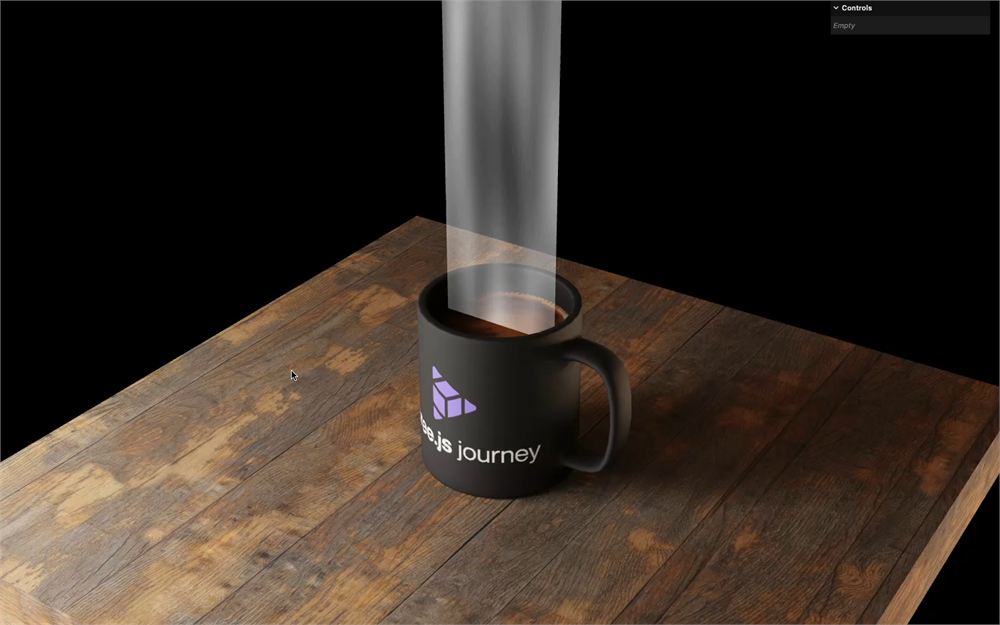
有三个问题。它太快了,方向反了,而且过了一秒后我们只能看到长长的线条。
通过把 uTime 乘以 0.03 来减慢动画:
void main()
{
    // ...
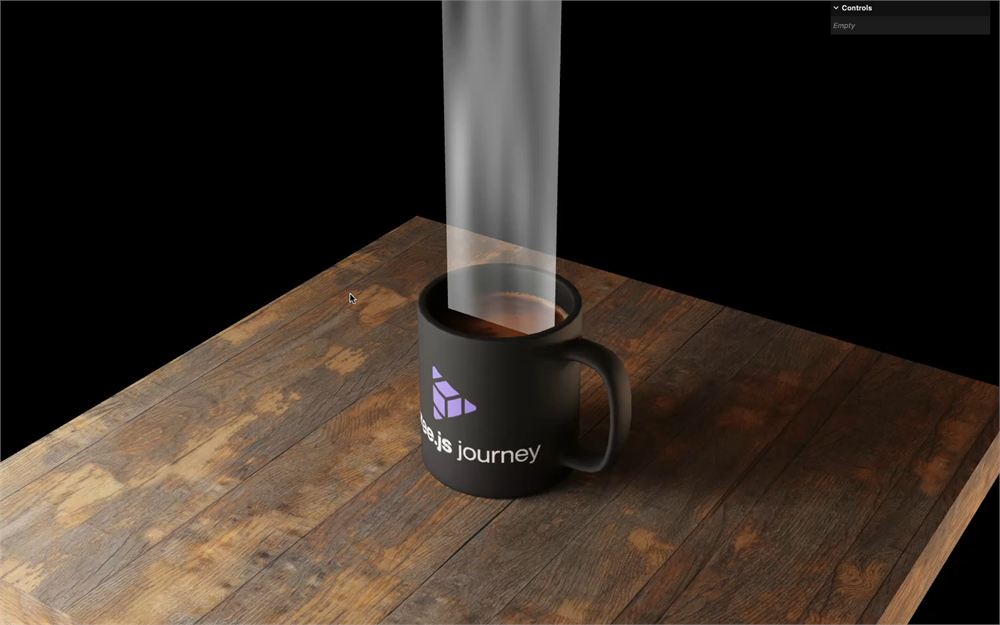
    smokeUv.y += uTime * 0.03;

    // ...
}
通过使用减法而不是加法来反转方向:
void main()
{
    // ...
    smokeUv.y -= uTime * 0.03;

    // ...
}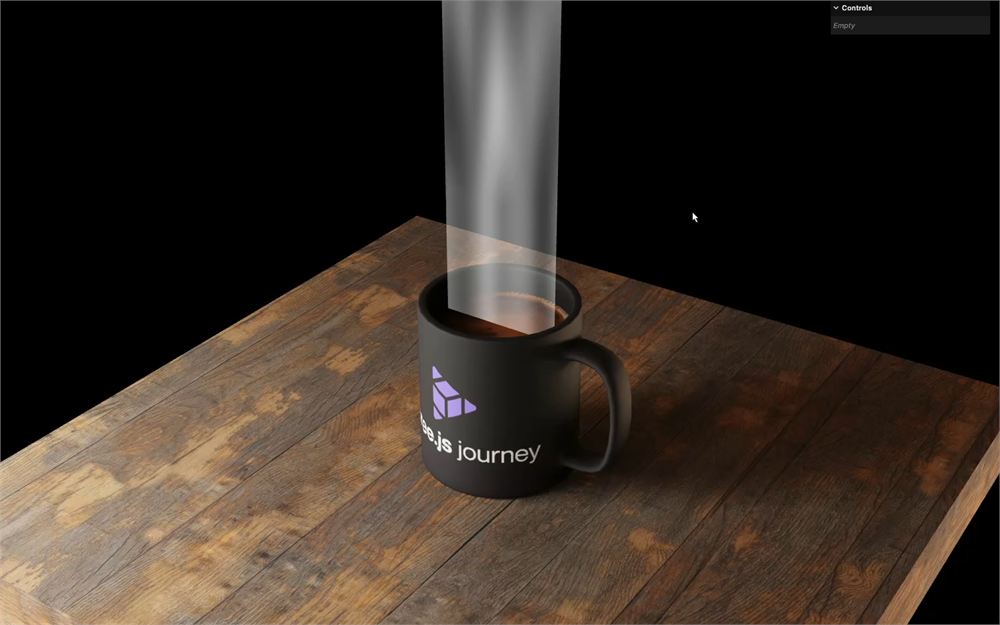
过了一会儿,我们只能看到长长的线条,因为 texture 没有重复。
为了解决这个问题,在 script.js 中,把 wrapS 和 wrapT 设为 THREE.RepeatWrapping:
const perlinTexture = textureLoader.load('./perlin.png')
perlinTexture.wrapS = THREE.RepeatWrapping
perlinTexture.wrapT = THREE.RepeatWrapping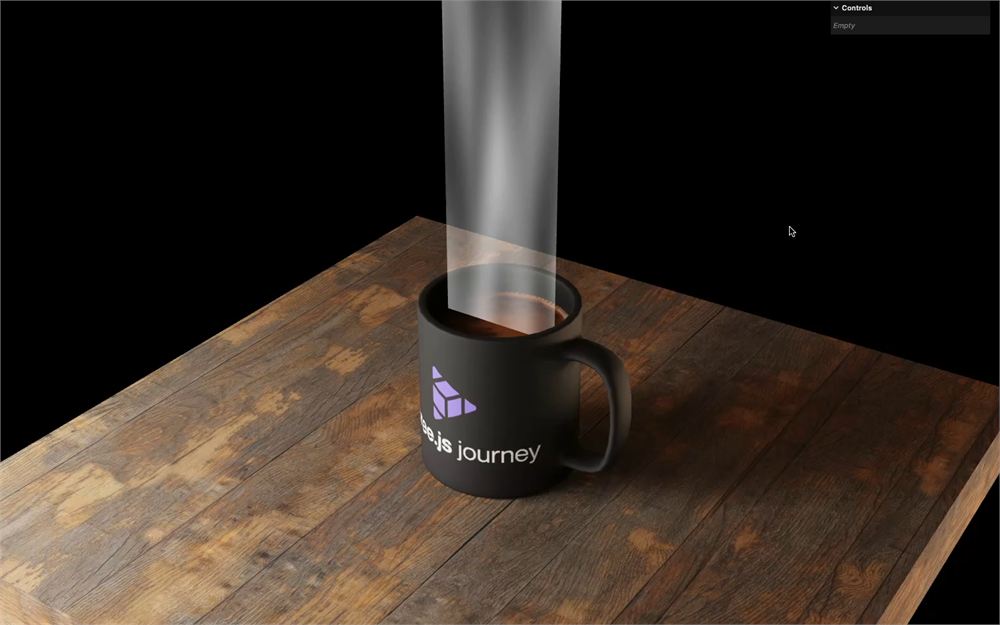
重映射数值
好多了,但烟雾太浓了。我们希望它更零散一些。为此,我们将重映射数值。
目前,Perlin texture 的像素从 0(黑色)到 1(白色),这就是 texture 中没有大片透明区域的原因。
为了解决这个问题,我们将重映射数值,使其在原本为 0.4 的位置从 0 开始,到原本为 1 的位置变为 1(后者不会改变)。
这意味着所有低于 0.4 的值都会被限制为 0,然后逐渐上升到 1:
而更好的解决方案是拥有平滑的过渡:
这可以通过在 GLSL 中使用 smoothstep 函数来实现。
在创建 smoke 变量之后立即使用 smoothstep 重映射数值。第一个参数是下限(0.4),第二个参数是上限(1.0),第三个参数是你要重映射的值(smoke):
void main()
{
    // ...

    // Smoke
    float smoke = texture(uPerlinTexture, smokeUv).r;

    // Remap
    smoke = smoothstep(0.4, 1.0, smoke);

    // ...
}
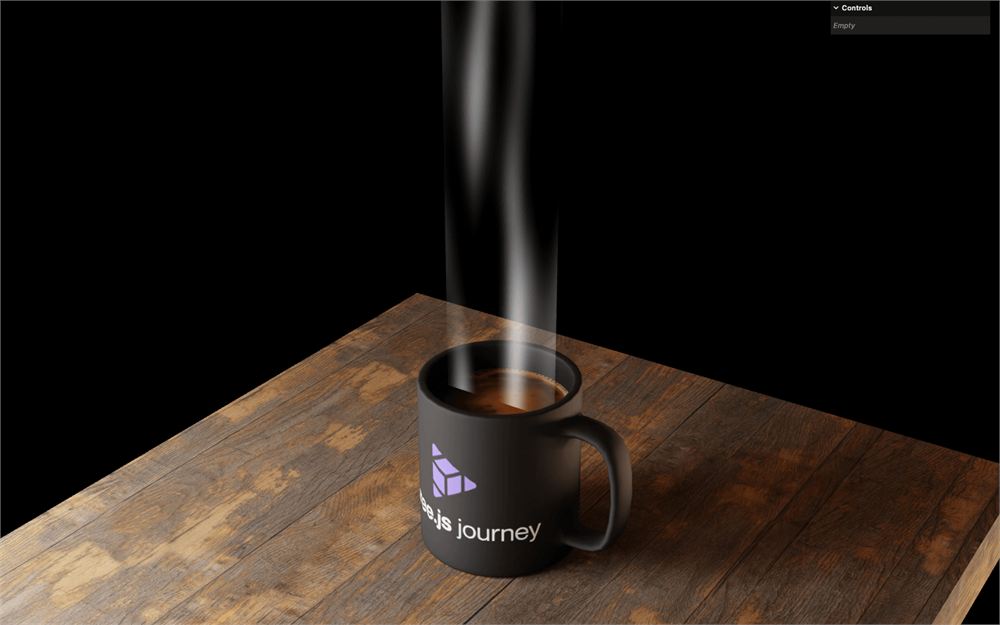
smoothstep 返回一个 0 到 1 的值,这对我们来说非常完美,因为我们想把它用在 alpha 上。另外注意该值会被钳制,虽然在我们的情况下这不会改变任何东西。
淡化边缘
我们几乎完成了 fragment,但边缘太尖锐了。
为了解决这个问题,我们将再次使用 smoothstep 函数,以便在边缘“平滑地”降低 alpha。
首先,我们将在重映射之后把 smoke 设为 1.0,以便理解接下来的说明:
void main()
{
    // ...

    // Remap
    smoke = smoothstep(0.4, 1.0, smoke);

    // Edges
    smoke = 1.0;

    // ...
}
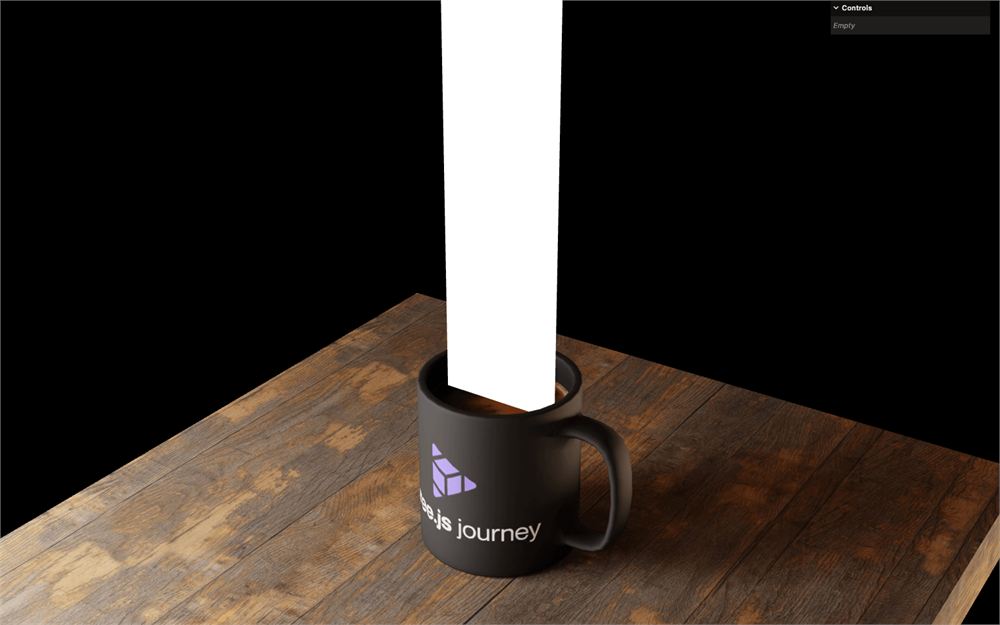
我们从左侧边缘开始。我们希望 smoke 在最边缘处为 0,然后非常快地上升到 1。
为此,我们可以使用 smoothstep(),但这次用在 vUv.x 上:
void main()
{
    // ...

    // Edges
    smoke = 1.0;
    smoke = smoothstep(0.0, 0.1, vUv.x);

    // ...
}
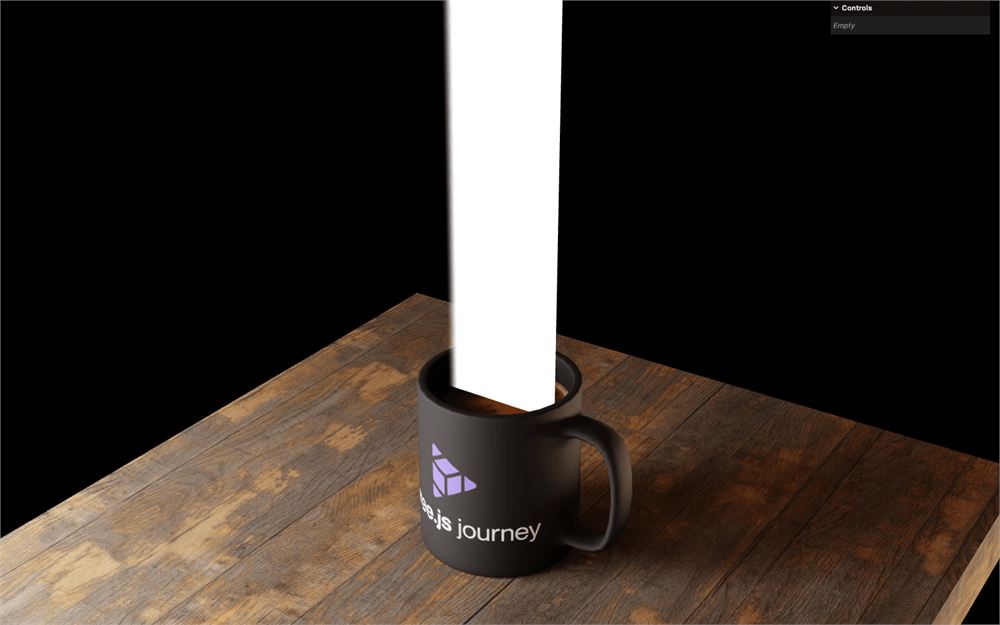
注意我们使用的是原始的 vUv,而不是经过缩放和动画处理的 smokeUv。
让我们在另一侧尝试同样的做法:
void main()
{
    // ...

    // Edges
    smoke = 1.0;
    smoke = smoothstep(0.0, 0.1, vUv.x);
    smoke = smoothstep(0.9, 1.0, vUv.x);

    // ...
}
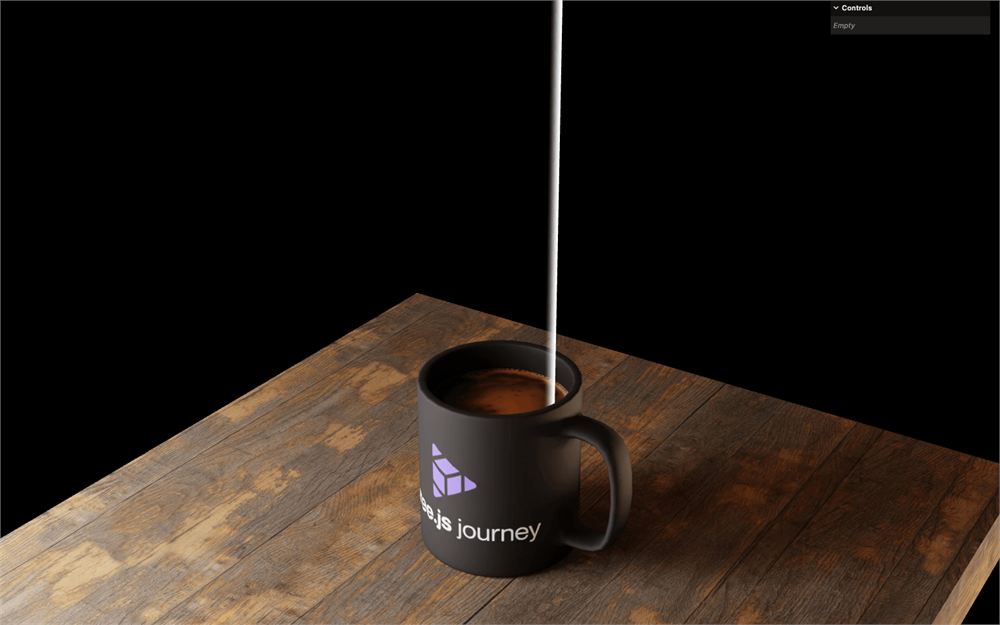
并不完全是我们想要的。为了解决这个问题,我们只需把前两个参数颠倒:
void main()
{
    // ...

    // Edges
    smoke = 1.0;
    smoke = smoothstep(0.0, 0.1, vUv.x);
    smoke = smoothstep(1.0, 0.9, vUv.x);

    // ...
}
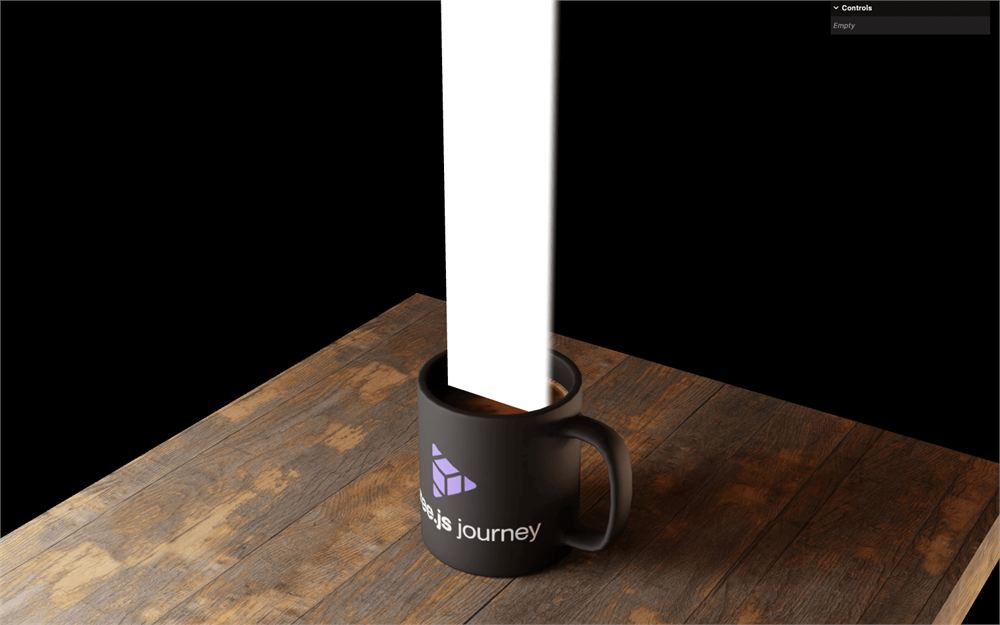
现在,为了将它们组合起来,我们可以把它们相乘:
void main()
{
    // ...

    // Edges
    smoke = 1.0;
    smoke *= smoothstep(0.0, 0.1, vUv.x);
    smoke *= smoothstep(1.0, 0.9, vUv.x);

    // ...
}
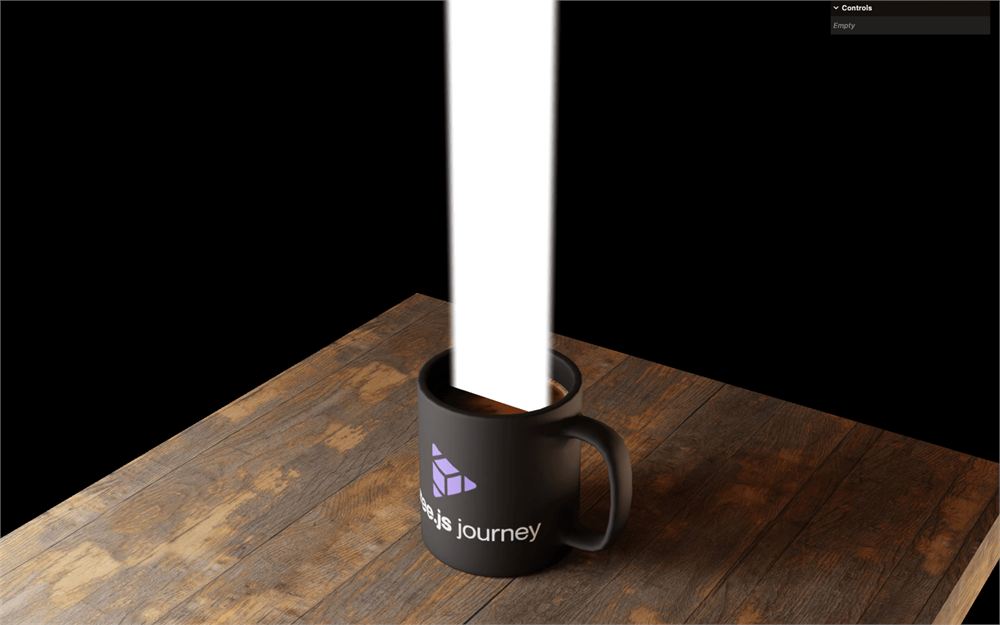
让我们用 vUv.y 对顶部和底部做同样的处理:
void main()
{
    // ...

    // Edges
    smoke = 1.0;
    smoke *= smoothstep(0.0, 0.1, vUv.x);
    smoke *= smoothstep(1.0, 0.9, vUv.x);
    smoke *= smoothstep(0.0, 0.1, vUv.y);
    smoke *= smoothstep(1.0, 0.4, vUv.y);

    // ...
}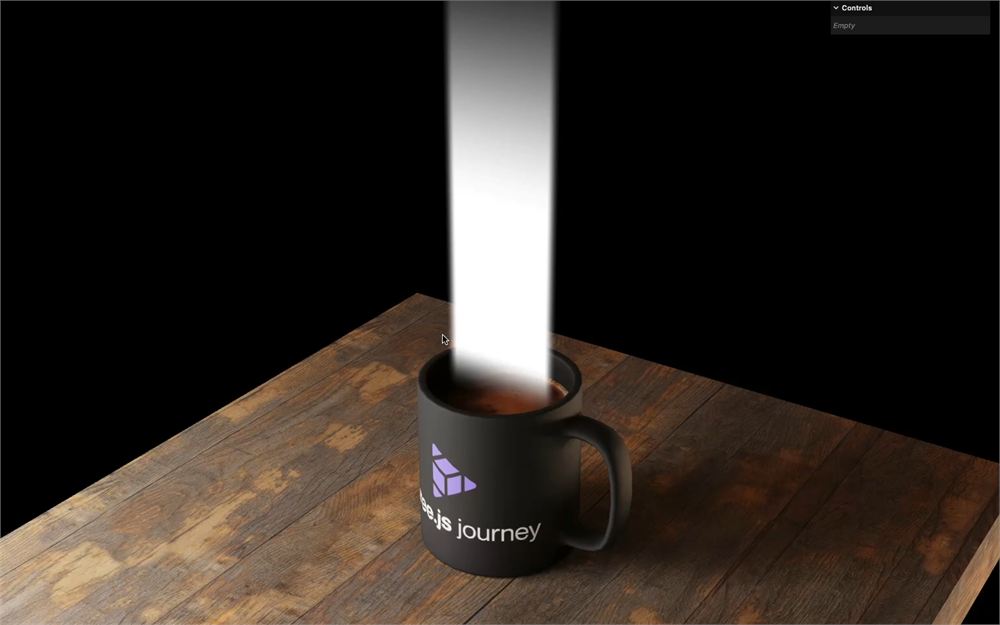
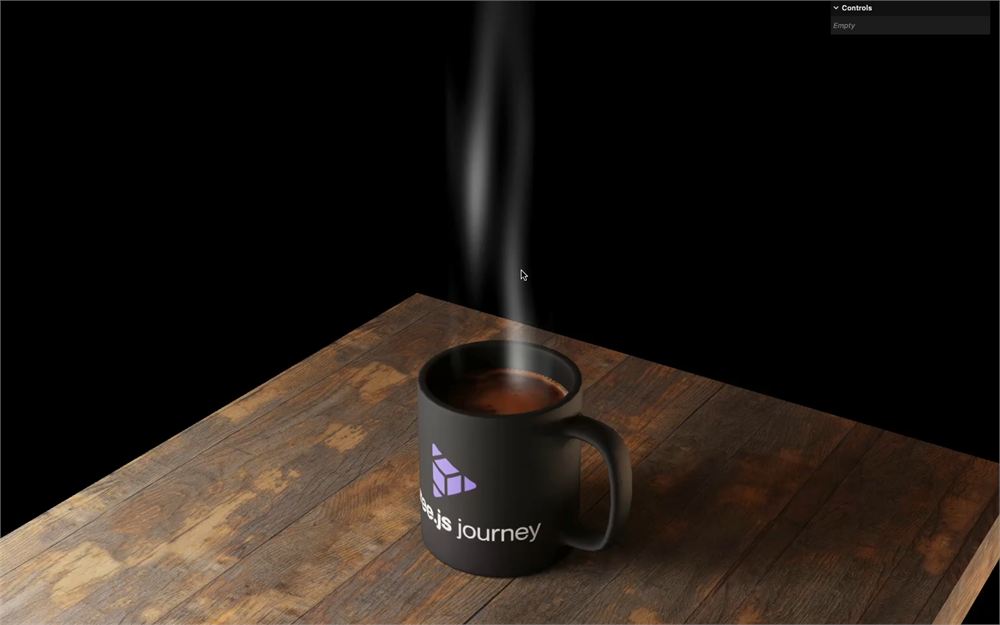
现在我们可以移除 smoke = 1.0,以便用 Perlin 图案测试我们的动画:
void main()
{
    // ...

    // Edges
    smoke *= smoothstep(0.0, 0.1, vUv.x);
    smoke *= smoothstep(1.0, 0.9, vUv.x);
    smoke *= smoothstep(0.0, 0.1, vUv.y);
    smoke *= smoothstep(1.0, 0.4, vUv.y);

    // ...
}
颜色
让我们用一种明亮的棕色代替那个白色,以便更好地融入 scene:
void main()
{
    // ...

    // Final color
    gl_FragColor = vec4(0.6, 0.3, 0.2, smoke);
    // ...
}
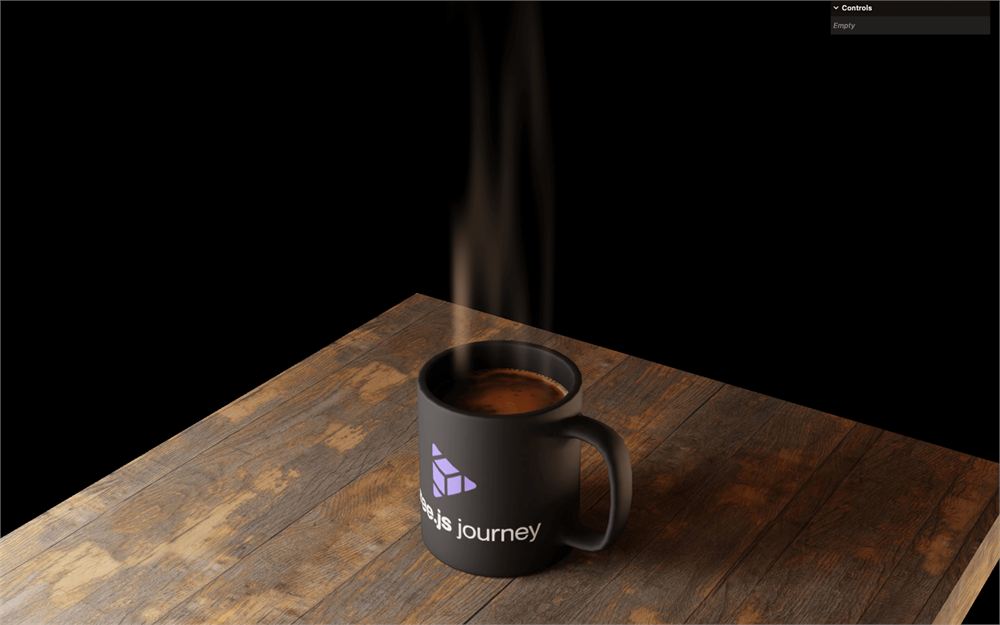
我们的 fragment shader 就完成了。
为 vertex 添加动画
烟雾看起来不错,但如果我们移动 camera,就会发现它只是一个平面,缺乏运动让它看起来很假。
我们将让烟雾扭转,同时还要随风移动。
为了更好地欣赏动画效果,我们将把 gl_FragColor 设为红色:
void main()
{
    // ...

    gl_FragColor = vec4(0.6, 0.3, 0.2, smoke);
    gl_FragColor = vec4(1.0, 0.0, 0.0, 1.0);
    // ...
}
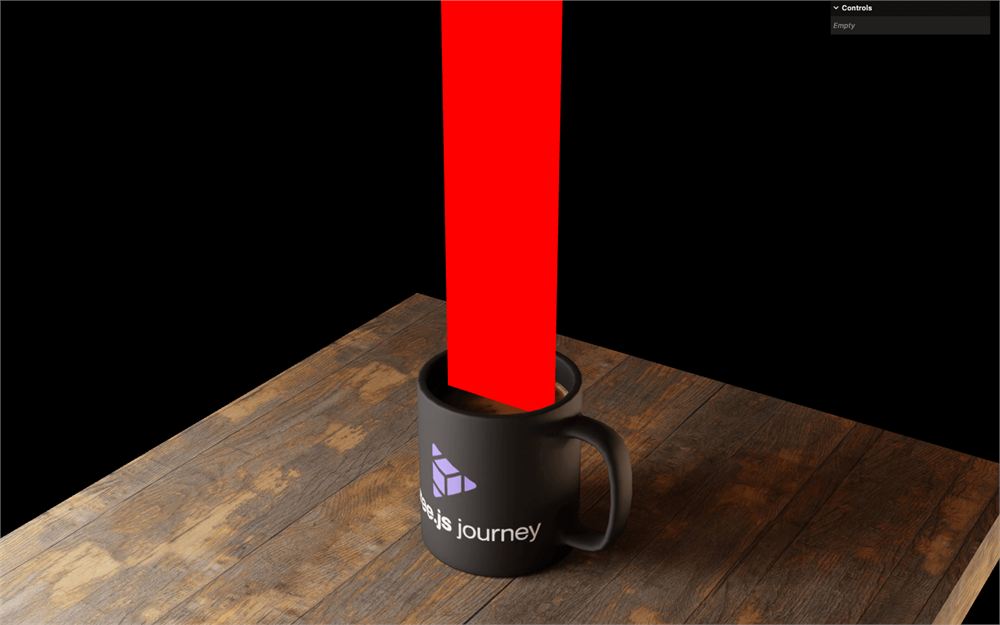
并把 wireframe 重新加回 smokeMaterial:
const smokeMaterial = new THREE.ShaderMaterial({
    // ...
    wireframe: true
})
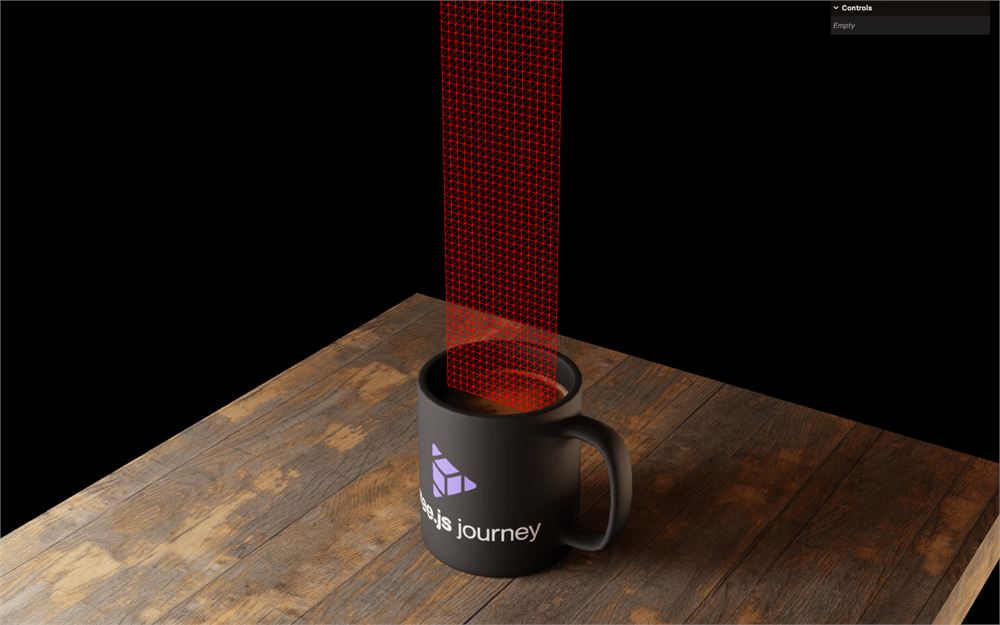
扭转
我们希望 vertex 围绕平面的中心旋转,并且让旋转随高度而变化。
这意味着 vertex 将沿着 y 轴在 xz 平面上旋转:
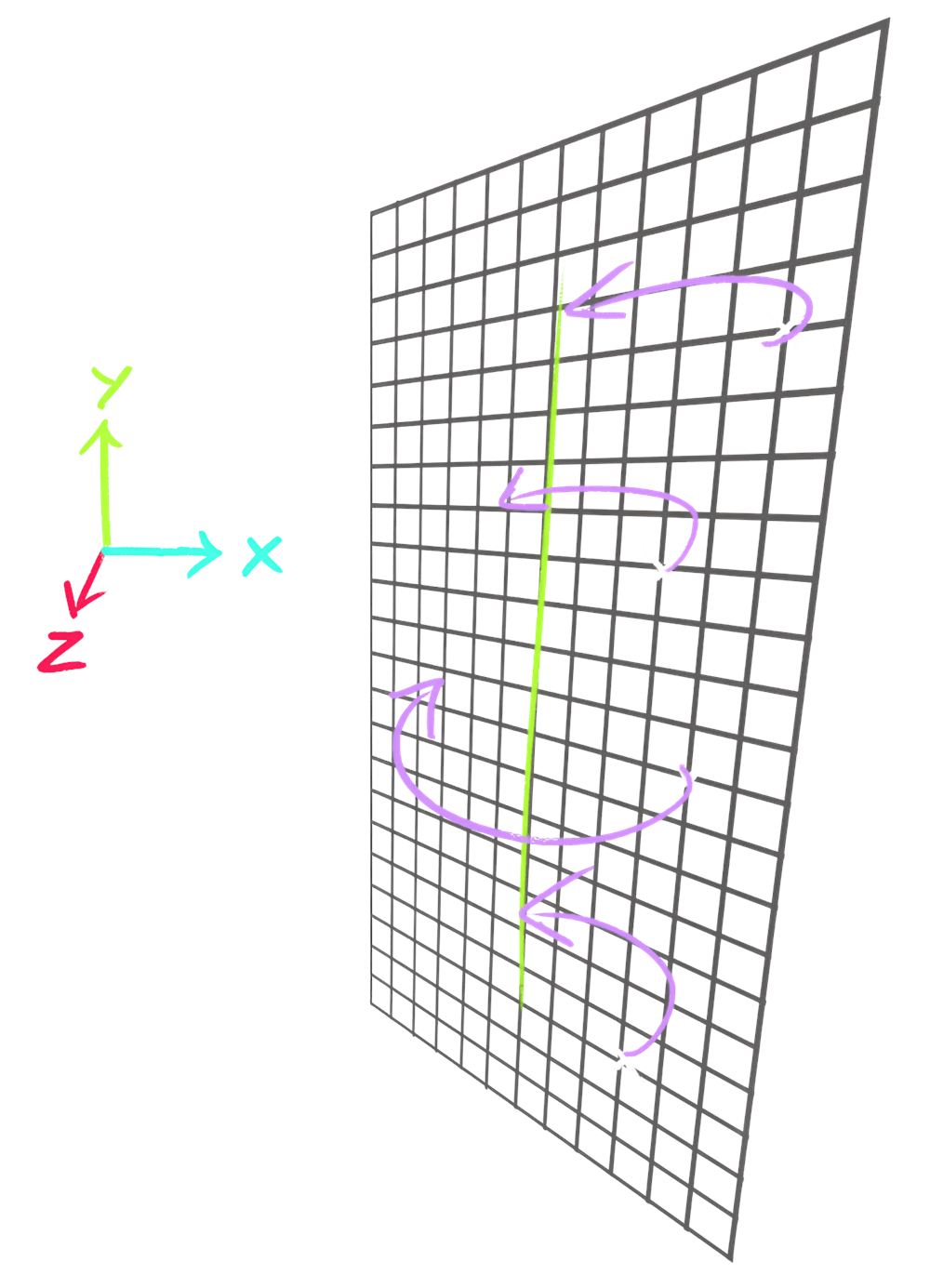
我们本可以自己计算旋转,但不如偷个懒,使用一个现成的函数。
在 vertex.glsl 中,在 main() 之前添加以下函数:
vec2 rotate2D(vec2 value, float angle)
{
    float s = sin(angle);
    float c = cos(angle);
    mat2 m = mat2(c, s, -s, c);
    return m * value;
}

void main()
{
    // ...
}
这是一个典型的函数,我们可以通过快速上网搜索或询问 AI 来获得。
我们想在 position 被 modelViewMatrix 变换之前对它应用旋转,但我们不能直接修改 position 变量,因为它是一个 attribute。
为了解决这个问题,创建一个 vec3 newPosition 变量,把 position 赋值给它,然后在 gl_Position 中使用它:
void main()
{
    vec3 newPosition = position;

    // Final position
    gl_Position = projectionMatrix * modelViewMatrix * vec4(newPosition, 1.0);

    // ...
}
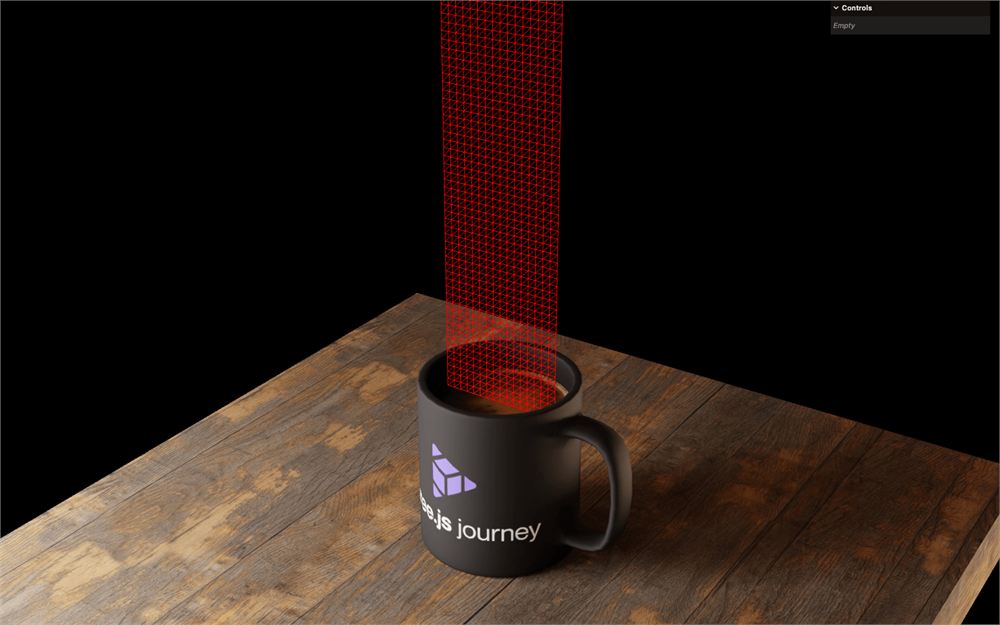
我们得到了相同的结果,但现在可以修改 newPosition 了。
让我们尝试使用 rotate2D() 函数来旋转它:
void main()
{
    vec3 newPosition = position;

    // Twist
    float angle = 2.0;
    newPosition.xz = rotate2D(newPosition.xz, angle);

    // ...
}
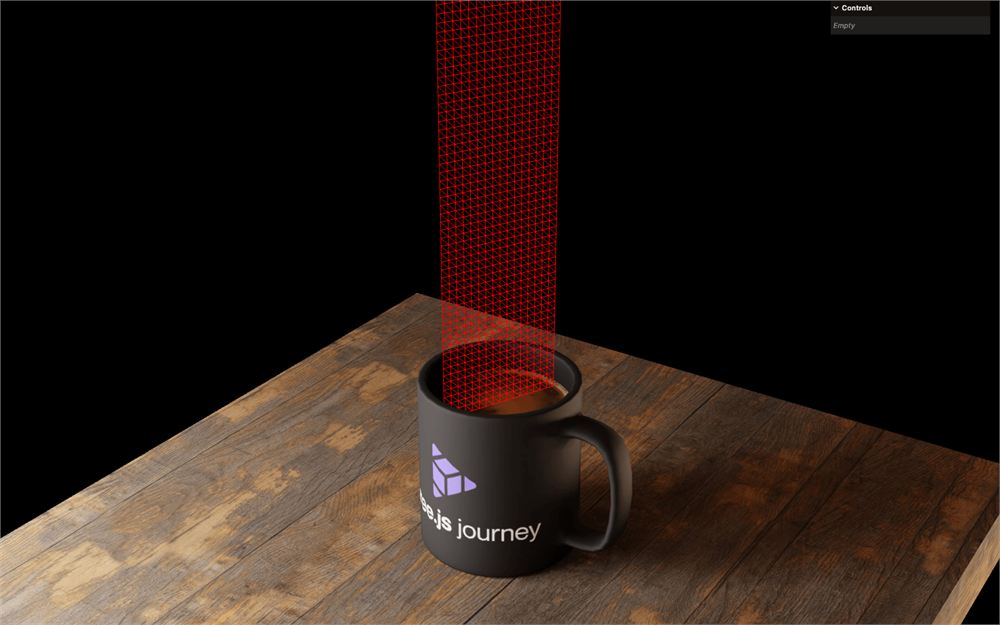
它起作用了,但所有 vertex 都以相同的方式旋转。我们需要让旋转随高度而变化。
把 newPosition.y 作为 angle 传入:
void main()
{
    // ...

    // Twist
    float angle = newPosition.y;
    newPosition.xz = rotate2D(newPosition.xz, angle);

    // ...
}
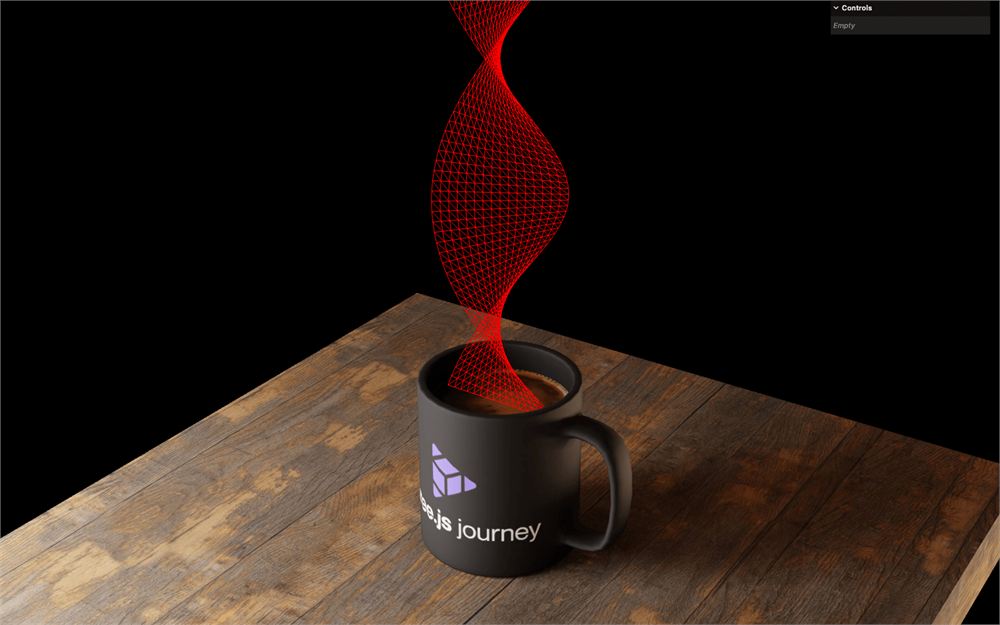
这很好,但太规律了,而且没有动画。幸运的是,我们已经拥有了所需的一切,我们将使用与 fragment shader 中相同的 uTime 和 uPerlinTexture。
在 vertex shader 中获取这两个 uniform:
uniform float uTime;
uniform sampler2D uPerlinTexture;
现在我们需要使用 texture() 在 uPerlinTexture 上采样颜色。
我们想要一个只随高度变化的值。因此,作为传给 texture() 的 vec2() 的第一个值,我们将放入 0.5,并使用 uv.y 作为第二个值。
把结果保存到 twistPerlin:
void main()
{
    // ...

    // Twist
    float twistPerlin = texture(uPerlinTexture, vec2(0.5, uv.y)).r;
    float angle = newPosition.y;
    newPosition.xz = rotate2D(newPosition.xz, angle);

    // ...
}
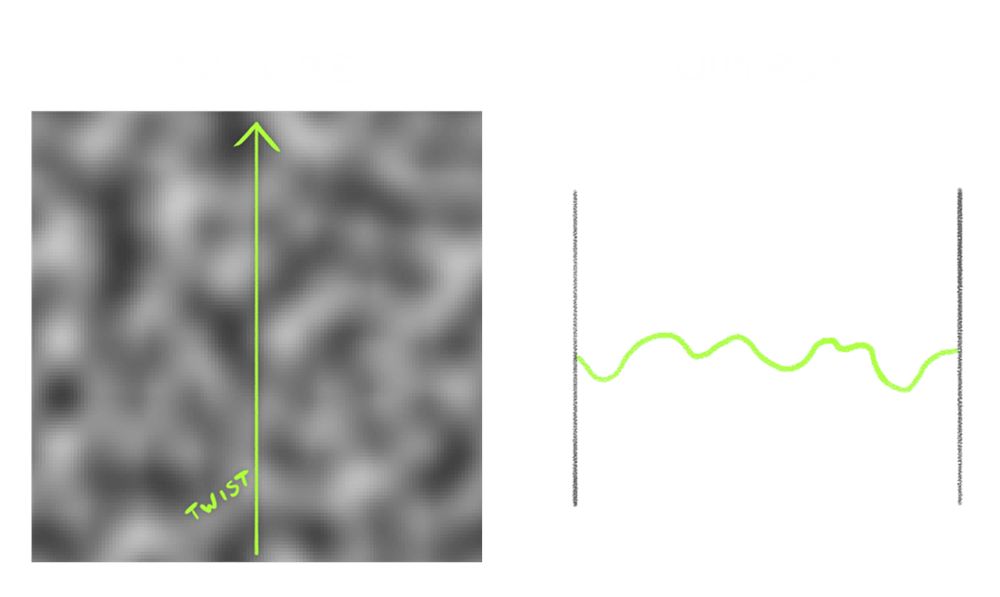
这就像在一条穿过 Perlin texture 的线上采样一个值:
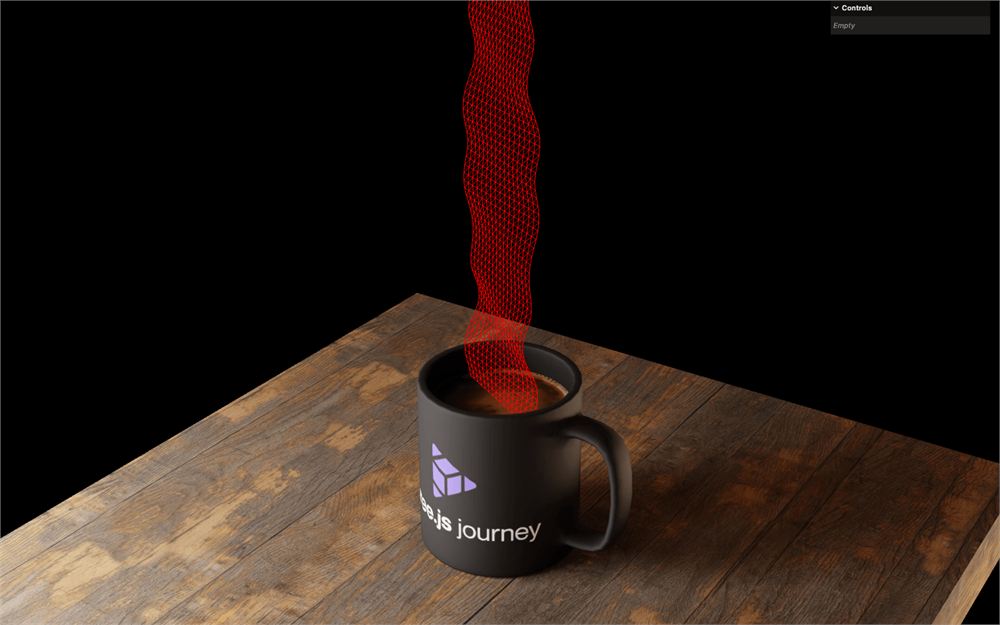
把 twistPerlin 赋值给 angle:
void main()
{
    // ...

    // Twist
    float twistPerlin = texture(uPerlinTexture, vec2(0.5, uv.y)).r;
    float angle = twistPerlin;
    newPosition.xz = rotate2D(newPosition.xz, angle);

    // ...
}
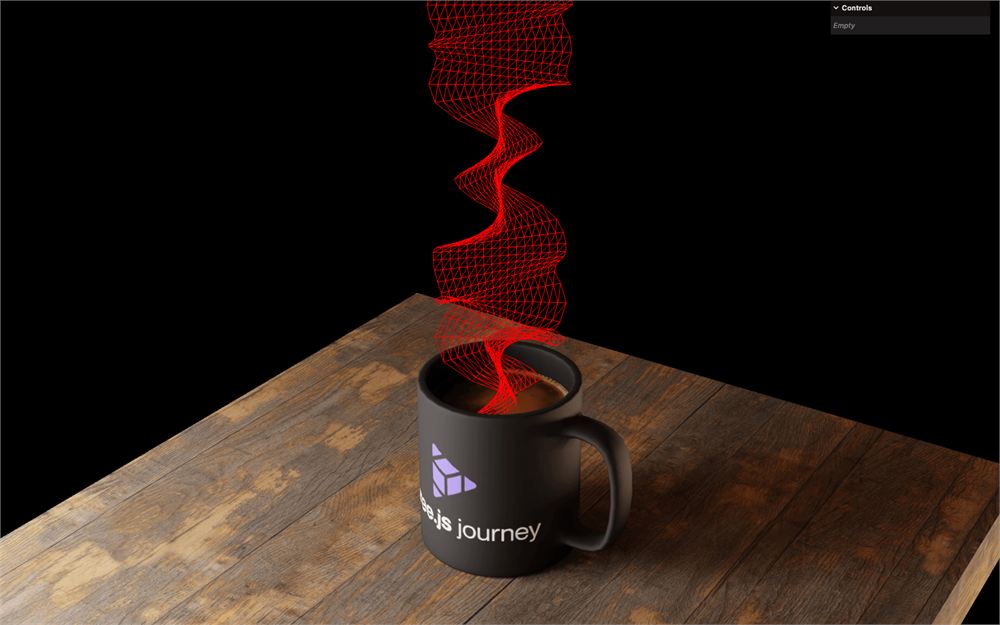
把 angle 乘以 10.0,让扭转更强烈:
void main()
{
    // ...

    // Twist
    float twistPerlin = texture(uPerlinTexture, vec2(0.5, uv.y)).r;
    float angle = twistPerlin * 10.0;
    newPosition.xz = rotate2D(newPosition.xz, angle);

    // ...
}
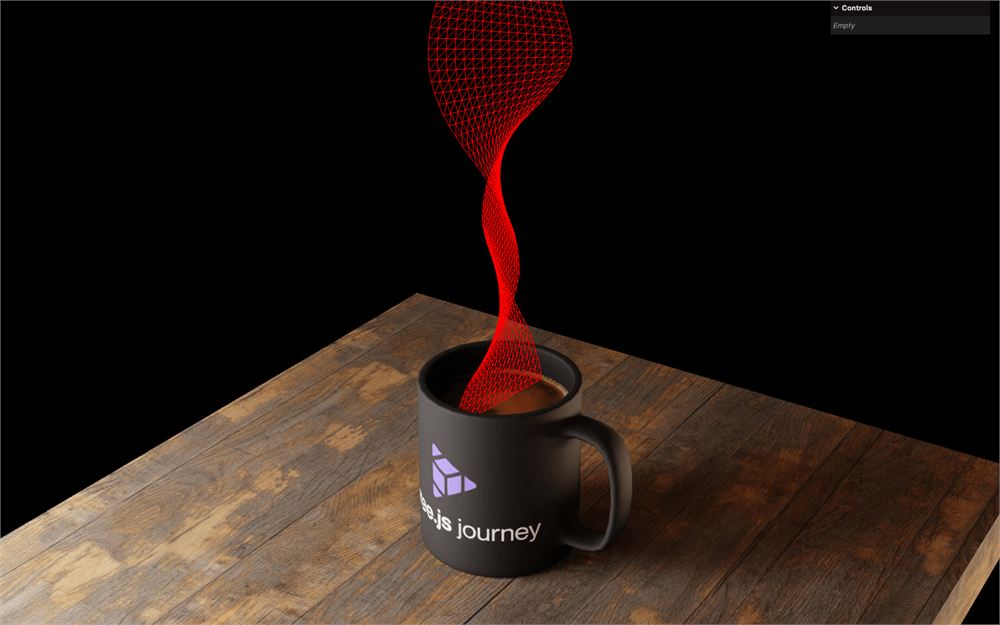
把 uv.y 乘以 0.2 来降低频率:
void main()
{
    // ...

    // Twist
    float twistPerlin = texture(uPerlinTexture, vec2(0.5, uv.y * 0.2)).r;

    // ...
}
如果你想要更好的可读性,可以添加换行:
void main()
{
    // ...

    // Twist
    float twistPerlin = texture(
        uPerlinTexture,
        vec2(0.5, uv.y * 0.2)
    ).r;

    // ...
}
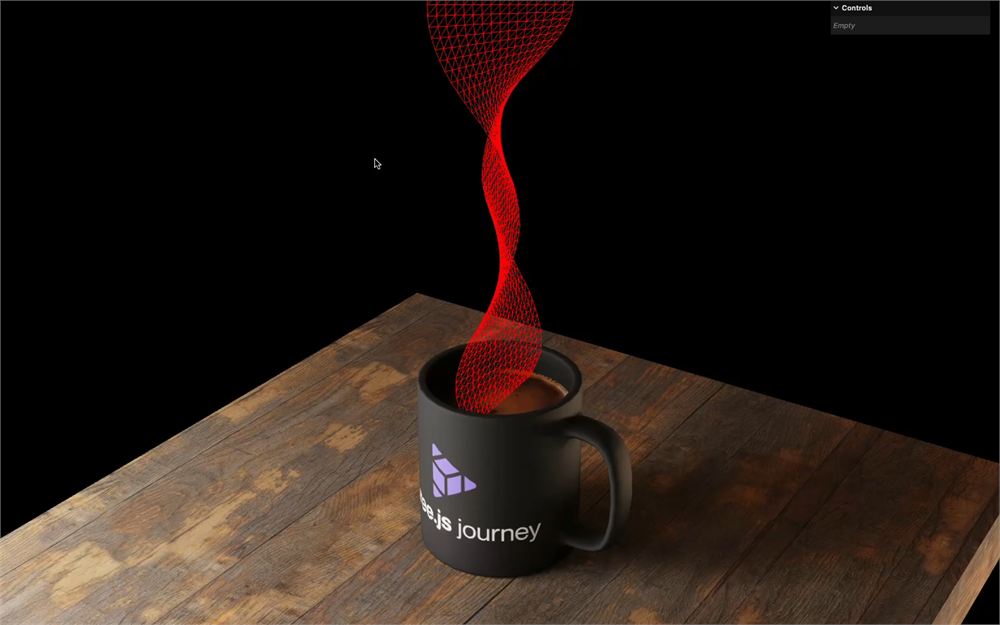
现在我们可以减去 uTime 来让图案动起来:
void main()
{
    // ...

    // Twist
    float twistPerlin = texture(
        uPerlinTexture,
        vec2(0.5, uv.y * 0.2 - uTime * 0.005)
    ).r;

    // ...
}
风
在用实际的烟雾图案测试之前,我们先来模拟风。
为了计算风的强度,我们将使用与扭转相同的技巧:从 Perlin texture 中采样一个颜色,并让 vertex 在 x 和 z 轴上移动。
在 Twist 部分之后,创建一个初始设为 0 和 0 的 vec2 windOffset,并将它加到 newPosition.xz 上(我们只希望它横向移动):
void main()
{
    // ...

    // Twist
    // ...

    // Wind
    vec2 windOffset = vec2(
        0,
        0
    );
    newPosition.xz += windOffset;

    // ...
}
我们暂时专注于 x,它对应 windOffset 的第一个值,我们将使用与之前相同的技巧,从 Perlin texture 中采样一个颜色。
对于传给 texture() 的坐标,我们将使用 0.25 和 uTime:
void main()
{
    // ...

    // Wind
    vec2 windOffset = vec2(
        texture(uPerlinTexture, vec2(0.25, uTime)).r,
        0
    );
    newPosition.xz += windOffset;

    // ...
}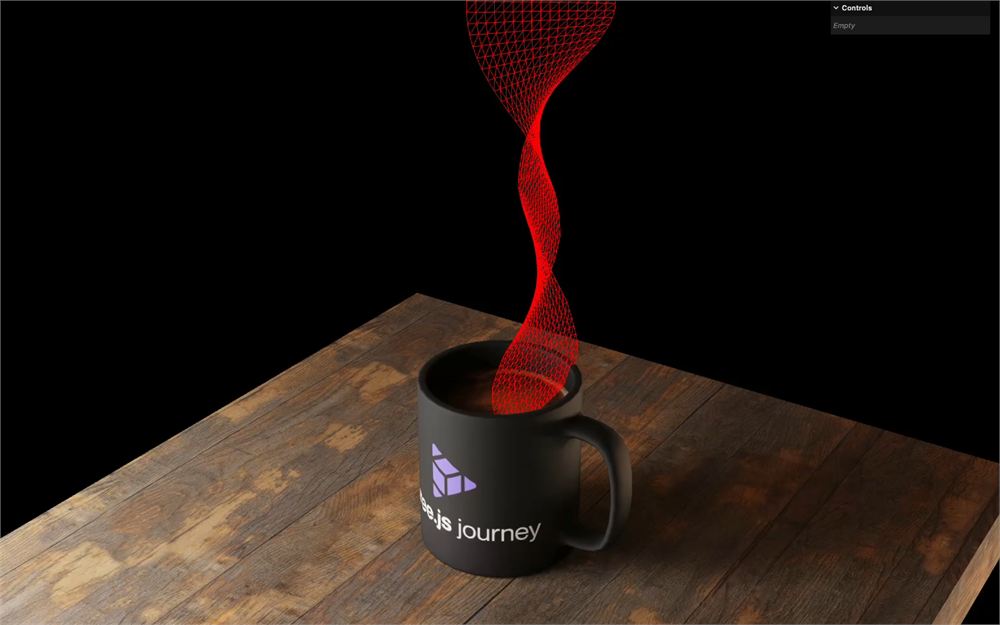
我们选择 0.25 是为了避免采样与扭转相同的线(那条线设在 0.5)。此外,我们使用 uTime 让它随时间变化,就像一条在 Perlin texture 上向上移动的线:
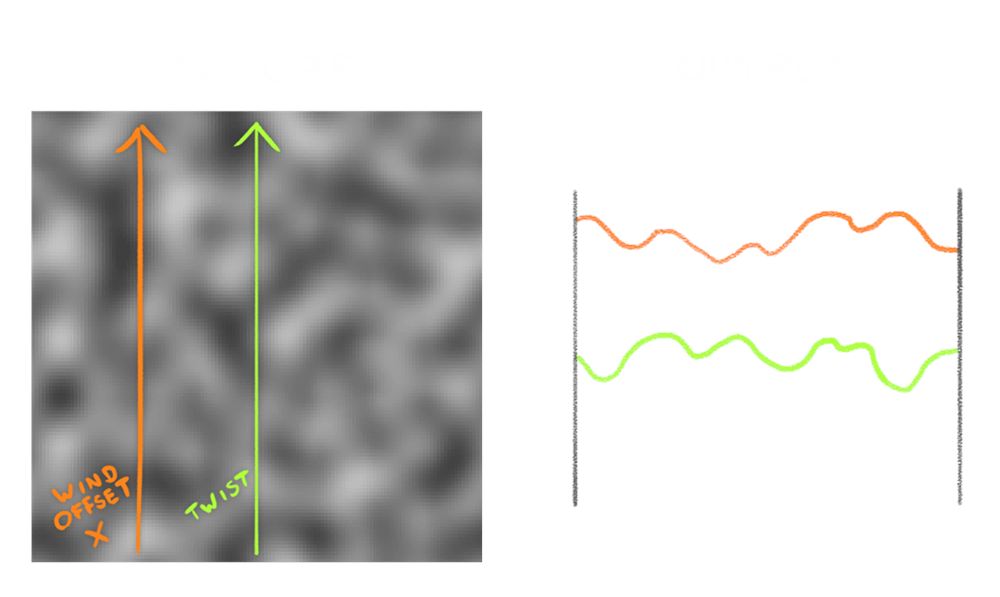
这个动画显然太快了,但我们暂时保持这个速度,专注于形状和方向。
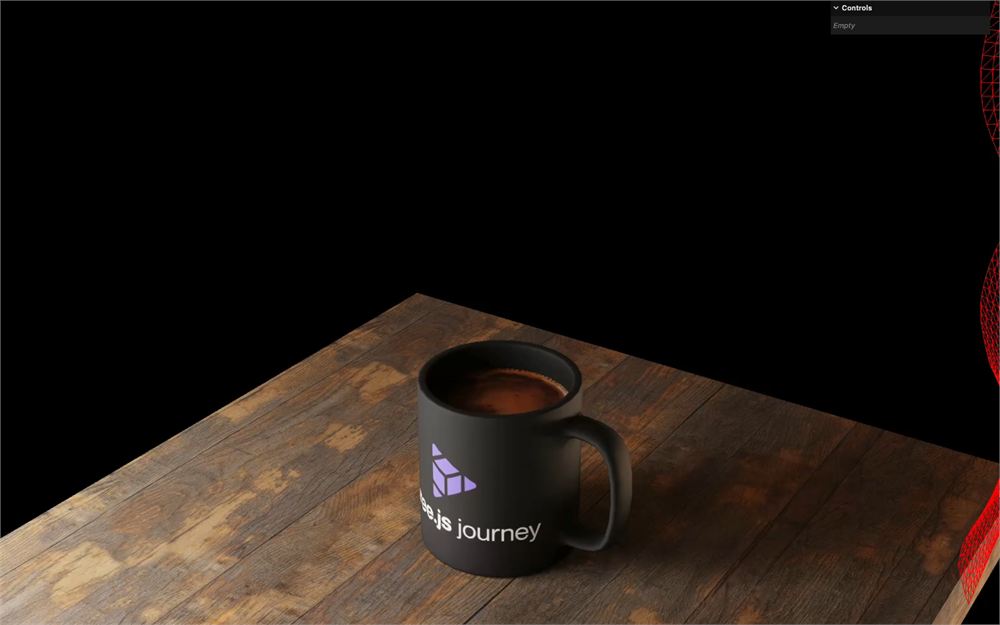
首先,让我们把 windOffset 乘以 10.0 来增强强度:
void main()
{
    // ...

    // Wind
    vec2 windOffset = vec2(
        texture(uPerlinTexture, vec2(0.25, uTime)).r,
        0
    );
    windOffset *= 10.0;
    newPosition.xz += windOffset;

    // ...
}
为了让烟雾的底部固定在初始位置,我们可以乘以 uv.y,因为 uv.y 在底部为 0,然后向上增大:
void main()
{
    // ...

    // Wind
    vec2 windOffset = vec2(
        texture(uPerlinTexture, vec2(0.25, uTime)).r,
        0
    );
    windOffset *= uv.y  * 10.0;
    newPosition.xz += windOffset;

    // ...
}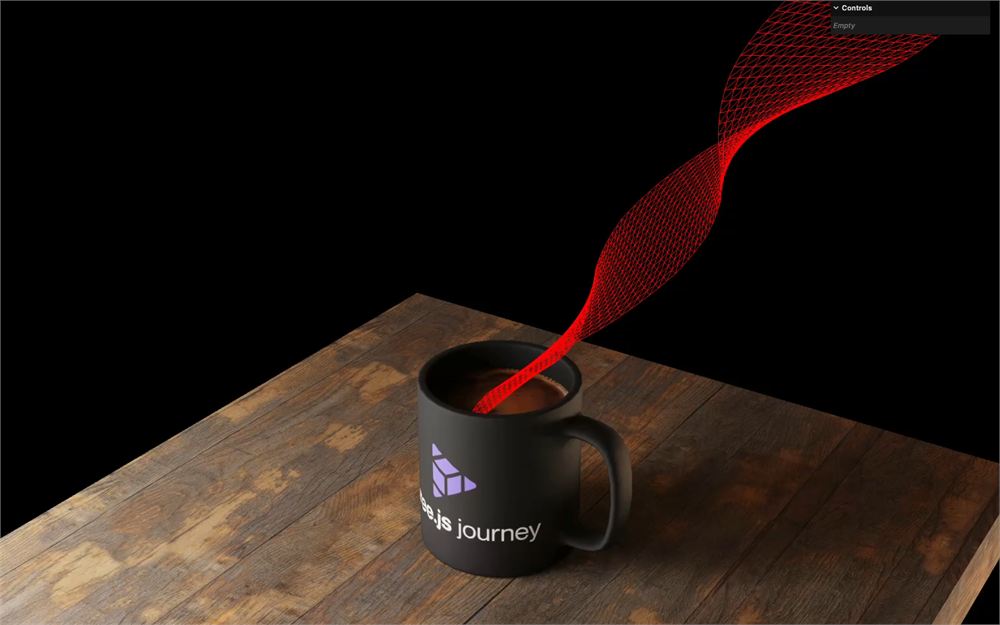
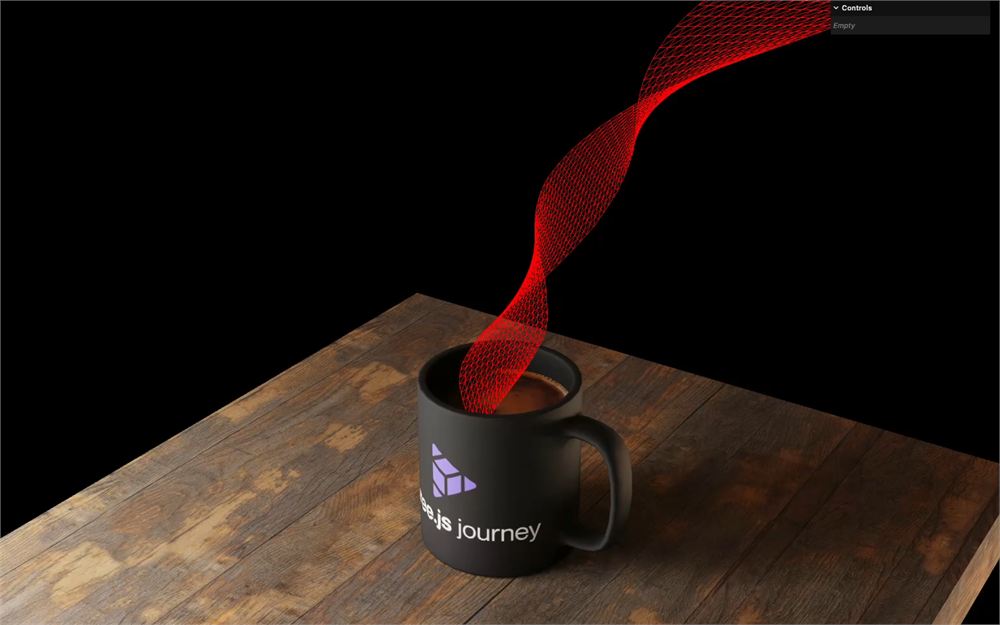
好多了,但还不够真实。我们希望强度在底部非常小,起初缓慢增加,然后在到达烟雾顶部时快速增加,这可以通过幂来实现:
使用 pow 函数对 uv.y 应用 2 次幂:
void main()
{
    // ...

    // Wind
    vec2 windOffset = vec2(
        texture(uPerlinTexture, vec2(0.25, uTime)).r,
        0
    );
    windOffset *= pow(uv.y, 2.0) * 10.0;
    newPosition.xz += windOffset;

    // ...
}
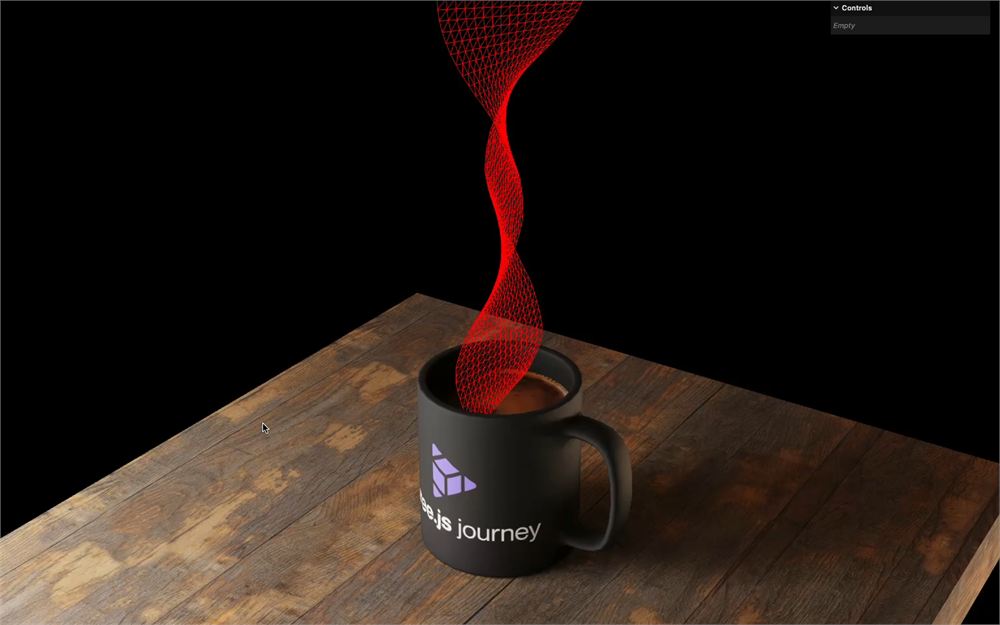
我们还需要让这个值既能取正值也能取负值。因为 windOffset.x 是从 Perlin texture 中提取的,它的范围是 0 到 1。减去 0.5 后,得到的值范围就从 -0.5 到 +0.5:
void main()
{
    // ...

    // Wind
    vec2 windOffset = vec2(
        texture(uPerlinTexture, vec2(0.25, uTime)).r - 0.5,
        0
    );
    windOffset *= pow(uv.y, 2.0) * 10.0;
    newPosition.xz += windOffset;

    // ...
}
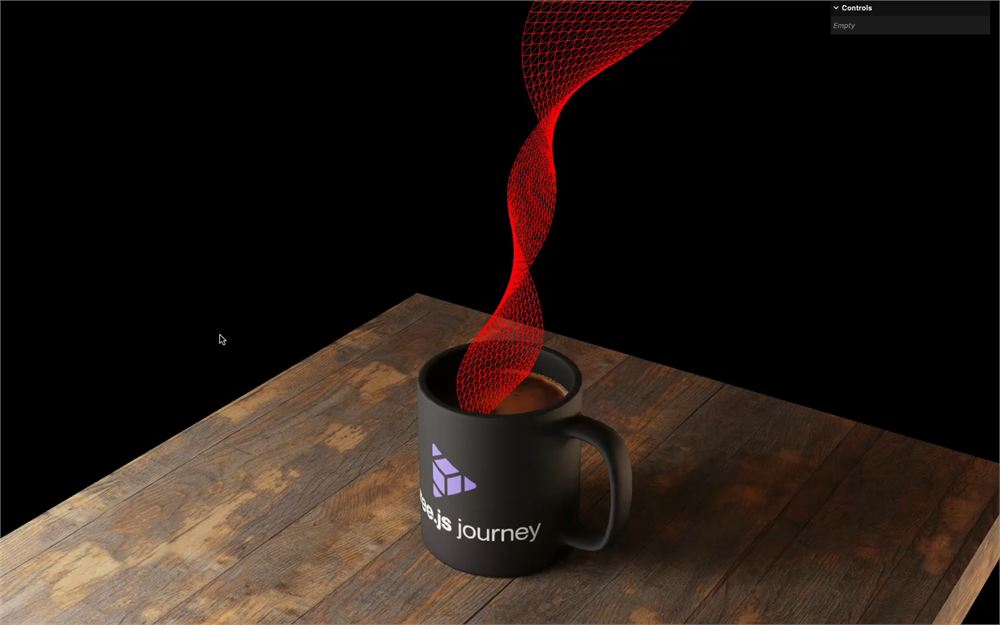
现在是时候通过把 uTime 乘以 0.01 来减慢动画了:
void main()
{
    // ...

    // Wind
    vec2 windOffset = vec2(
        texture(uPerlinTexture, vec2(0.25, uTime * 0.01)).r - 0.5,
        0
    );
    windOffset *= pow(uv.y, 2.0) * 10.0;
    newPosition.xz += windOffset;

    // ...
}
让我们在 z 轴上做同样的事,用相同的公式替换 windOffeset 的第二个值:
void main()
{
    // ...

    // Wind
    vec2 windOffset = vec2(
        texture(uPerlinTexture, vec2(0.25, uTime * 0.01)).r - 0.5,
        texture(uPerlinTexture, vec2(0.25, uTime * 0.01)).r - 0.5
    );

    // ...
}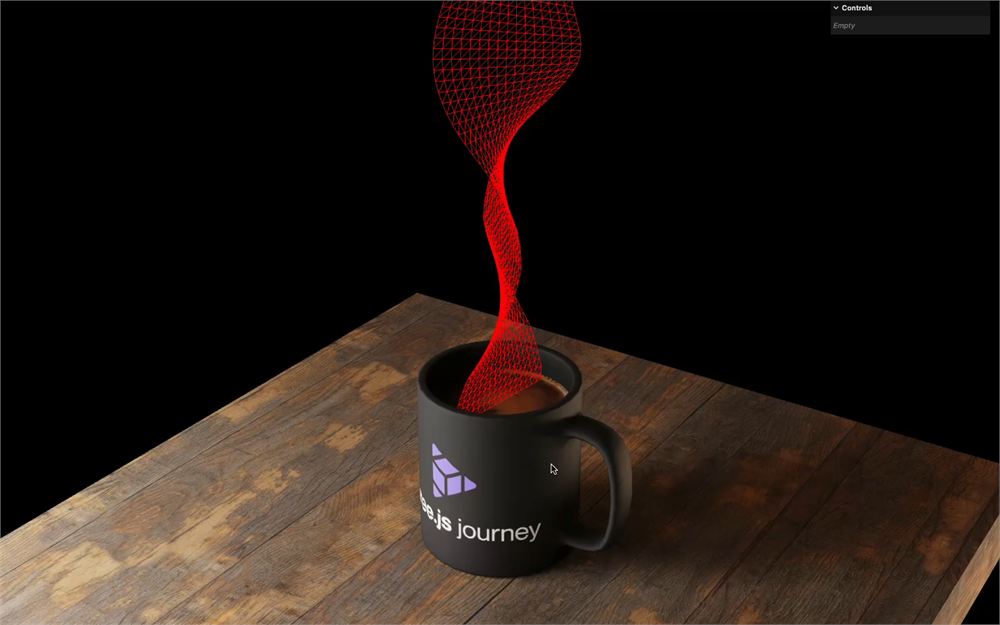
你可能会注意到 x 和 z 上的动画是相同的,这只会导致沿对角线的平移。
这是因为我们为 Perlin texture 采样的值完全相同。
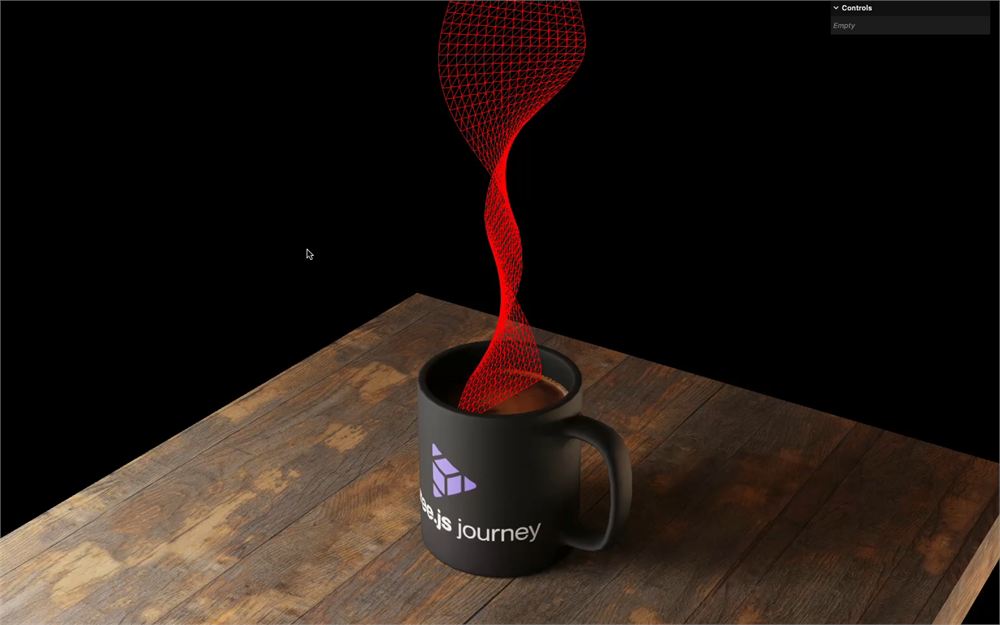
我们可以通过把 0.25 改为 0.75 来修复,这样我们就会在 texture 的不同线上采样值:
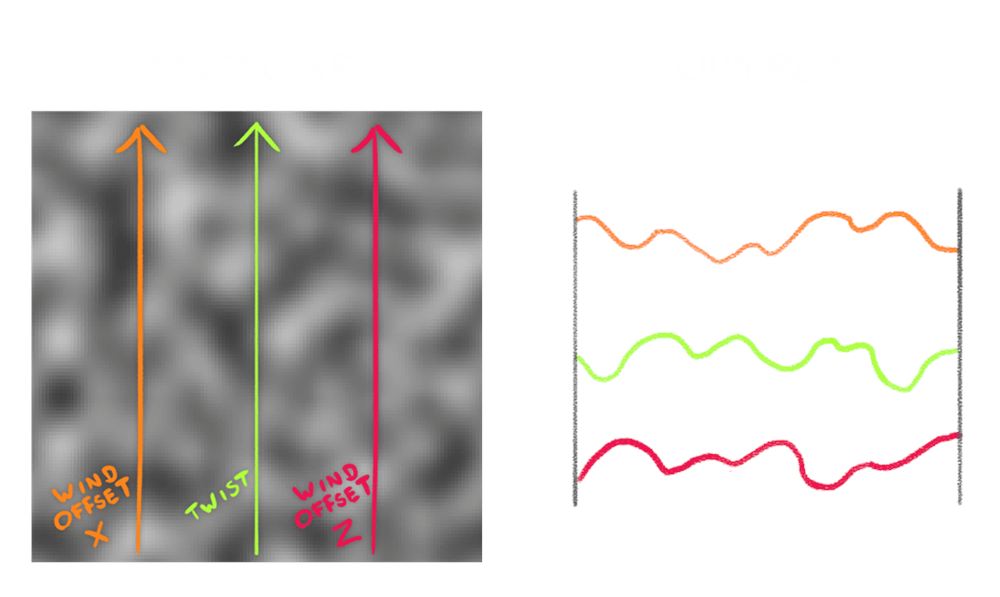
void main()
{
    // ...

    // Wind
    vec2 windOffset = vec2(
        texture(uPerlinTexture, vec2(0.25, uTime * 0.01)).r - 0.5,
        texture(uPerlinTexture, vec2(0.75, uTime * 0.01)).r - 0.5
    );

    // ...
}
移除或注释掉 wireframe:
const smokeMaterial = new THREE.ShaderMaterial({
    // wireframe: true
})
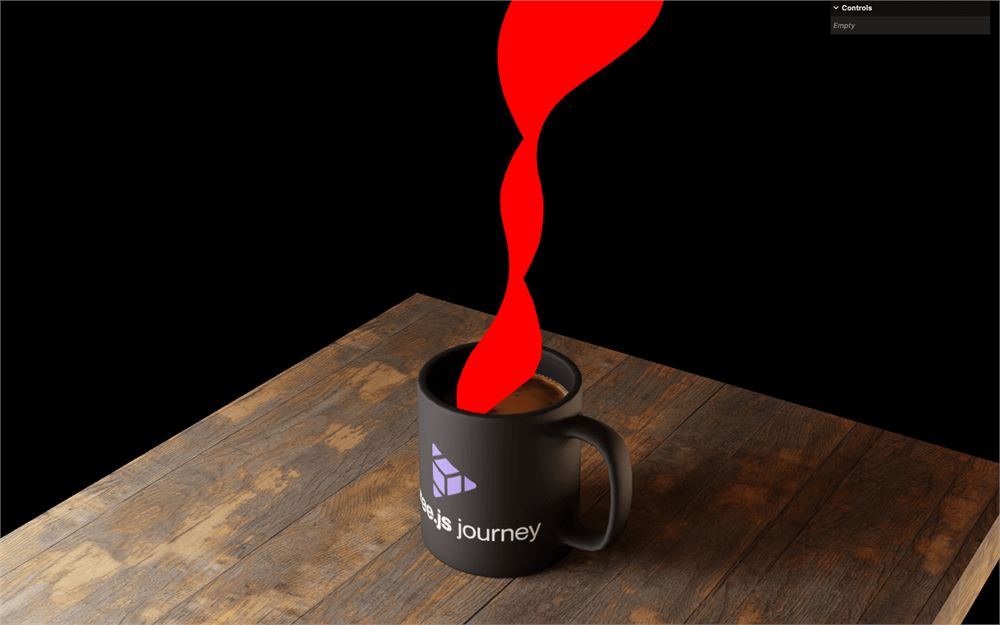
把最初的 gl_FragColor 放回 fragment shader 中:
void main()
{
    // ...

    // Final color
    gl_FragColor = vec4(0.6, 0.3, 0.2, smoke);
    #include <tonemapping_fragment>
    #include <colorspace_fragment>
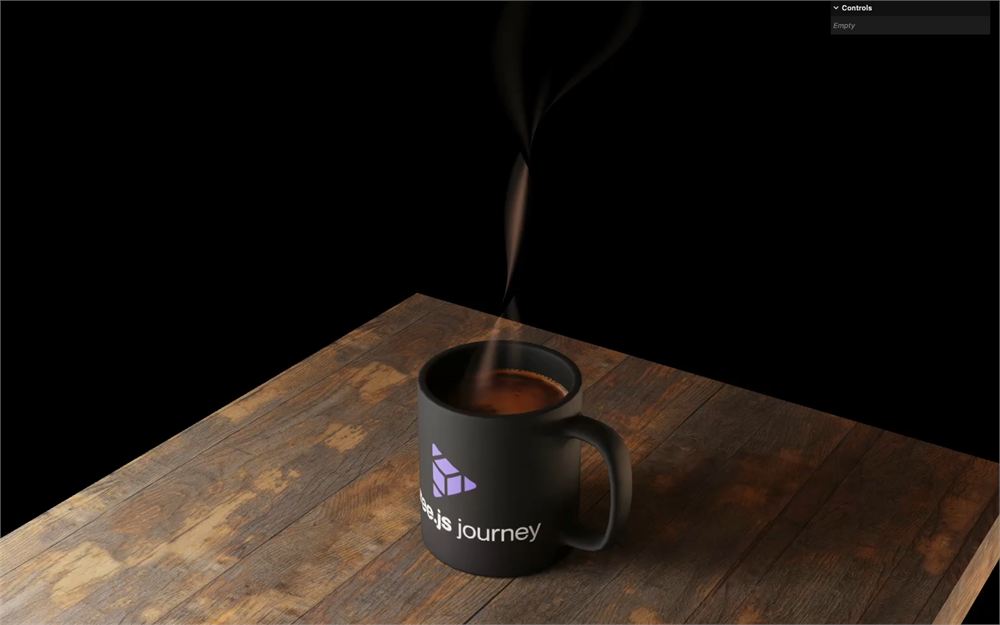
}
透明遮挡
这烟雾既好看又动感十足。然而,从某些角度观察时,平面似乎会遮挡它自己:
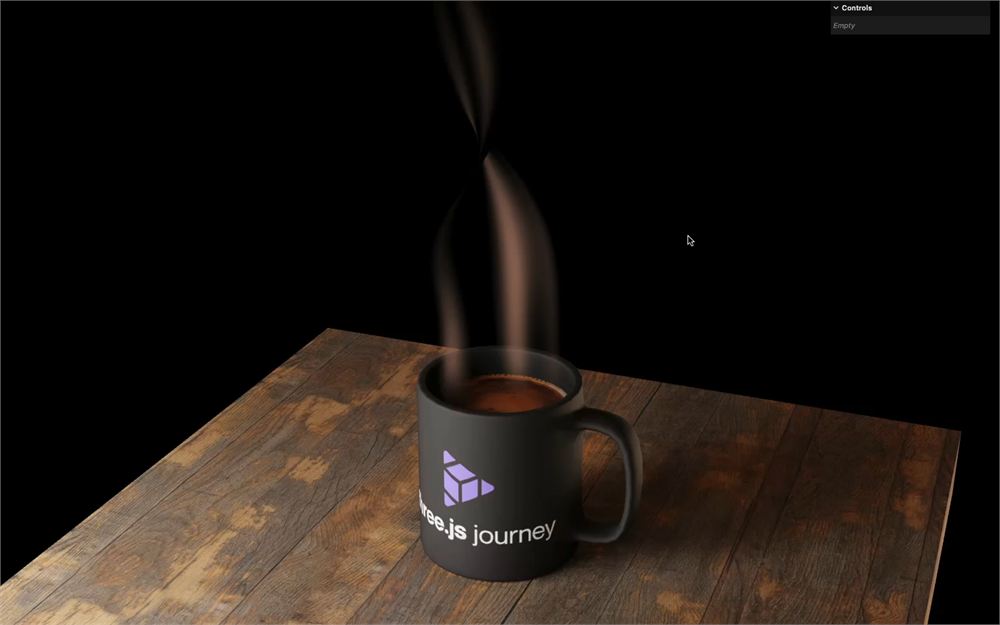
这是因为平面会写入 depth buffer,这意味着它会遮挡它后面的任何东西,包括它自己。
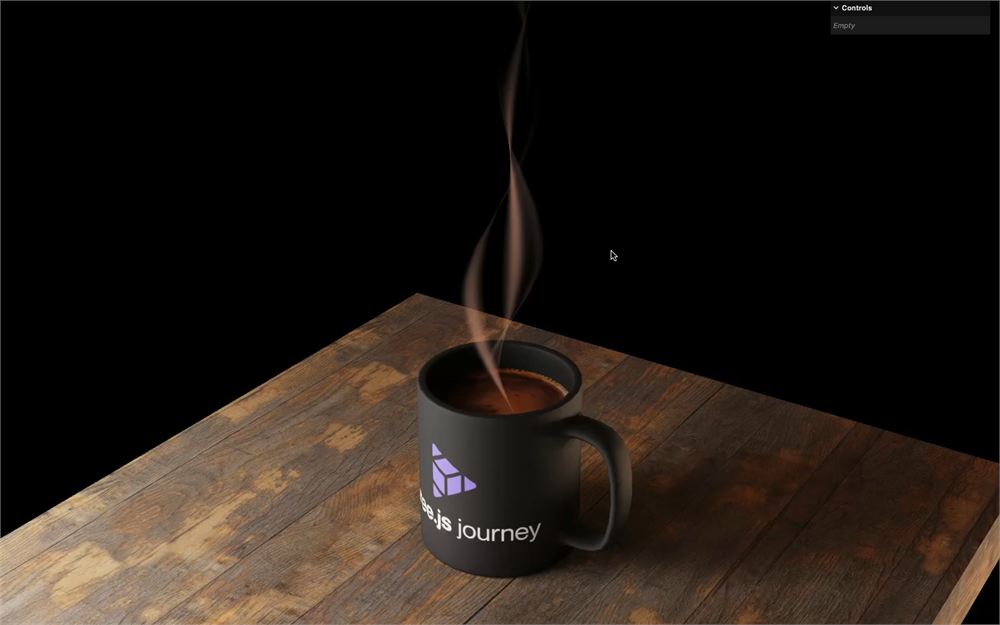
为了解决这个问题,我们可以通过在 smokeMaterial 上把 depthWrite 设为 false,让 material 不绘制到 depth buffer 中:
const smokeMaterial = new THREE.ShaderMaterial({
    // ...
    depthWrite: false,
    // ...
})
分离 shader chunk
我们完成了,但让我们做一些整理。
到目前为止,我们一直把所需的函数直接放在程序中 main() 函数之前,就像我们在之前的课程中对 rotate2D 或 Perlin 函数所做的那样。
这样也行,但会变得杂乱,你可能会在多个文件中出现相同的函数。
我们将把 rotate2D 函数移到一个单独的文件中并包含它。
在 src/shaders/ 中,创建一个 includes/ 文件夹。
在该 src/shaders/includes/ 文件夹中,创建一个 rotate2D.glsl 文件,并把 rotate2D 函数添加进去:
vec2 rotate2D(vec2 value, float angle)
{
    float s = sin(angle);
    float c = cos(angle);
    mat2 m = mat2(c, s, -s, c);
    return m * value;
}
回到 vertex.glsl,用以下语法来包含该文件,以替代原本的函数:
// ...

#include ../includes/rotate2D.glsl

void main()
{
    // ...
}
确保一切都已保存,项目应该和之前一样正常工作。
虽然这不是强制的,但它被认为是一种好习惯,能让该函数在其他 shader 中轻松复用。
更进一步
我们使用一张简单的 Perlin texture 创建了美丽而逼真的咖啡烟雾,与 Perlin 函数相比,这极大地提升了性能。
尽管它缺少 Perlin 函数的灵活性,而且由于是 texture 而局限于 2D 空间,但在大多数情况下已经足够,而且完全值得。
由于我们专注于 shader,就到此为止,但欢迎你自由地改进体验。这里有一些想法:
- 为 fragment 图案添加可调选项
- 为 vertex 动画添加可调选项
- 为颜色添加一个可调选项
- 使用你自己的模型作为场景
- 添加漂浮的棉花糖
- 让风随光标移动